
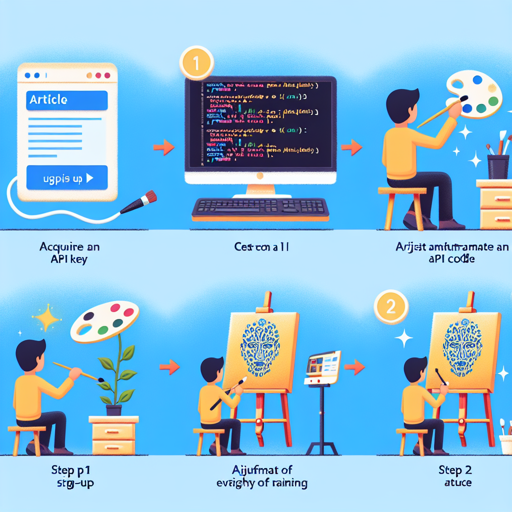
Welcome to the world of AI image generation! In this guide, we will dive into the steps needed to utilize the CetusMix API for creating ultra-realistic images. Through this process, you will explore how to set up your API key and employ the API effectively.
Step 1: Acquire Your API Key
To begin your journey, you need to obtain an API key. This key allows you to communicate with the CetusMix API. Here’s how you can get yours:
- Visit Stable Diffusion API.
- No payment is required; simply sign up and obtain your API key.
- Once you have it, replace the placeholder key in the code provided below.
Step 2: Modify the Code
Now that you have your API key, let’s look at the code required to interact with the CetusMix API. Before diving into it, here’s an analogy:
Imagine you are an artist preparing to paint a mural. The API key is your ticket to access the art supplies (the API), while the code functions like a detailed blueprint, guiding you step by step on how to create your masterpiece.
import requests
import json

# Set your access details
url = "https://stablediffusionapi.com/api/v3/dreambooth"
payload = json.dumps({
    "key": "",  # Replace with your API key
    "model_id": "cetusmix",
    "prompt": "actual 8K portrait photo of gareth person, portrait, happy colors...",
    "negative_prompt": "painting, extra fingers, mutated hands...",
    "width": 512,
    "height": 512,
    "samples": 1,
    "num_inference_steps": 30,
    "safety_checker": "no",
    "enhance_prompt": "yes",
    "seed": None,
    "guidance_scale": 7.5,
    "multi_lingual": "no",
    "panorama": "no",
    "self_attention": "no",
    "upscale": "no",
    "embeddings": "embeddings_model_id",
    "lora": "lora_model_id",
    "webhook": None,
    "track_id": None
})

headers = {
    "Content-Type": "application/json"
}

response = requests.request("POST", url, headers=headers, data=payload)
print(response.text)
Step 3: Understanding the Code
The code above acts like a detailed recipe for generating an image:
- URL: This is the destination for your request – think of it as the art studio you’re sending your request to.
- Payload: Here you’ll specify the ingredients (parameters) for your masterpiece. This includes the specific model and instructions on what kind of image to create.
- Headers: The headers function as your identification badge, making sure the studio knows who you are and what you want.
- Response: After sending your request, you will receive feedback in return, revealing if your image was created successfully or if it requires adjustments.
Troubleshooting Ideas
If you encounter any issues while integrating the CetusMix API, here are some troubleshooting tips to help you along the way:
- Ensure you have copied your API key correctly, and that it has not expired.
- Check the model ID for any typos; it should be set to “cetusmix”.
- Verify that your “Content-Type” is correctly set to “application/json” in your headers.
- If the response is unexpected, make sure your prompt is structured properly to avoid common errors.
For more insights, updates, or to collaborate on AI development projects, stay connected with fxis.ai.
Wrapping Up
And there you have it! With these steps, you can effortlessly interact with the CetusMix API to generate stunning images based on your imaginative prompts. Remember, practice makes perfect, so don’t hesitate to experiment with various parameters to achieve your desired results.
At fxis.ai, we believe that such advancements are crucial for the future of AI, as they enable more comprehensive and effective solutions. Our team is continually exploring new methodologies to push the envelope in artificial intelligence, ensuring that our clients benefit from the latest technological innovations.