
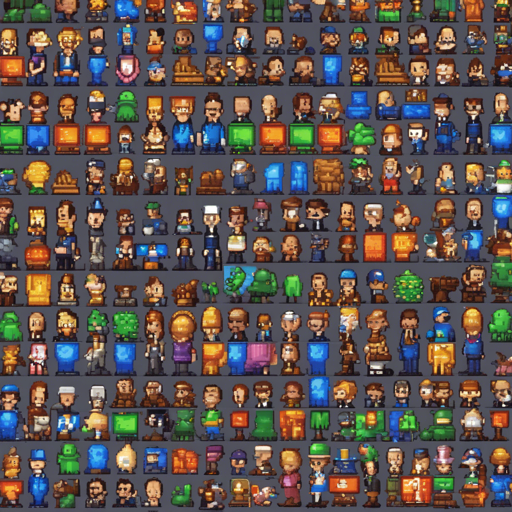
Are you ready to embark on an exciting journey into the world of pixel art? This blog will guide you on how to generate pixel art sprite sheets using a Stable Diffusion checkpoint designed to create captivating visuals from four different angles! Whether you’re developing a game or just exploring your creative side, this guide has you covered.
What You’ll Need
- Stable Diffusion Model
- Python Environment
- Diffusers Library
- Image Editing Software (e.g., Photoshop or Krita)
- Background Removal Tools
Step-by-step Guide
Let’s break down the process into manageable steps. Imagine you’re following a recipe to bake the perfect cake; each step is crucial to your success!
1. Set Up Your Environment
First, install the required libraries in your Python environment. Think of this as preparing your kitchen with the right tools for baking.
!pip install diffusers transformers scipy torch2. Import the Necessary Libraries
Next, import the libraries that will help you with the operation. This is similar to gathering your ingredients.
from diffusers import StableDiffusionPipeline
import torch
3. Load the Model
Now, let’s access the model and get it ready to brainstorm your pixel art. Think of it as preheating the oven.
model_id = "OnodofthenorthSD_PixelArt_SpriteSheet_Generator"
pipe = StableDiffusionPipeline.from_pretrained(model_id, torch_dtype=torch.float16)
pipe = pipe.to("cuda")
4. Craft Your Prompt
In this step, you’ll introduce your prompt to generate the pixel art. It’s like deciding the flavor of your cake!
prompt = "PixelartLSS"
image = pipe(prompt).images[0]
image.save(".pixel.png")
5. Generate for Different Angles
To get various perspectives of your character, apply the following prompt variations for different views:
- Front View: PixelartFSS!
- Back View: PixelartBSS!
- Left View: PixelartLSS!
- Right View: PixelartRSS!
6. Image Editing
Once you’ve generated your images, bring them into an image editing software like Photoshop or Krita. Here, you will remove backgrounds and scale your images to achieve the desired look. It’s akin to frosting that delicious cake!
Troubleshooting Tips
If you encounter any inconsistencies with your character in different views:
- Try adjusting the settings in the `img2img` feature for better results.
- You can mirror your best left and right outputs to enhance symmetry.
- If colors seem murky, scaling your images back up can help clear those up and give you a proper finish.
For more insights, updates, or to collaborate on AI development projects, stay connected with fxis.ai.
Conclusion
And there you have it! With just a few simple steps, you can create stunning pixel art sprite sheets. At fxis.ai, we believe that such advancements are crucial for the future of AI, as they enable more comprehensive and effective solutions. Our team is continually exploring new methodologies to push the envelope in artificial intelligence, ensuring that our clients benefit from the latest technological innovations.