
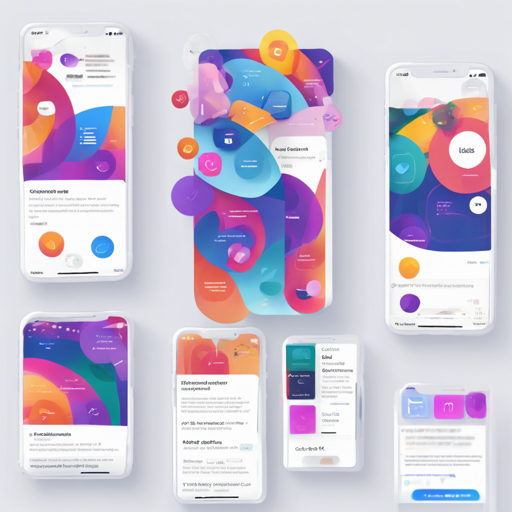
Preline UI is an open-source ensemble of prebuilt UI components designed to streamline your web design projects. Rooted in the utility-first Tailwind CSS framework, this toolkit allows developers to craft visually appealing, responsive mobile-first websites efficiently. In this blog, we’ll walk you through the setup and usage of Preline UI—think of it as a ready-made meal kit that allows you to whip up an exquisite dinner without starting from scratch.
Why Use Preline UI?
Imagine you’re entering a busy kitchen filled with the delightful scents of a gourmet restaurant. You want to create your dish quickly and beautifully without chopping every ingredient yourself. Preline UI brings this metaphor to life by providing a collection of components like buttons, dropdowns, navigation bars, and modals, pre-styled based on Tailwind CSS utility classes.
- Speed: Get your project up and running in no time.
- Customizability: Easily tailor the components to suit your unique flavor.
- Usability: Components categorized by functionality for straightforward access.
What’s in the Box?
Preline UI comes packed with various components categorized by visual usability (components, navigation, forms, etc.). This organization helps developers to pick and customize components without delving into complex design processes. Imagine being handed an artist’s toolkit with all the brushes and colors laid out for your convenience.
Quick Setup
Ready to dive into the world of Preline UI? Let’s get you started with a simple setup! Here’s how to unleash the power of Preline UI in your project:
Step 1: Installation
Before anything else, ensure you have Tailwind CSS installed alongside Node and NPM on your machine. If you haven’t yet, install them first!
Step 2: Installing Preline UI via NPM
npm i prelineStep 3: Configure Tailwind CSS
To integrate Preline UI with Tailwind CSS, include it as a plugin in your tailwind.config.js file:
module.exports = {
    content: [
        "node_modules/preline/dist/*.js"
    ],
    plugins: [
        require("preline/plugin")
    ],
}
Step 4: Add JavaScript Code
Place the following JavaScript code that powers the interactive elements right before the closing </body> tag:
<script src="node_modules/preline/dist/preline.js"></script>Troubleshooting Tips
If you encounter issues during installation or setup, consider these troubleshooting ideas:
- Ensure that both Node and NPM are correctly installed and configured on your machine.
- Check if your
tailwind.config.jsfile is correctly formatted and if the Preline plugin is correctly included. - Review the console in your browser’s developer tools for any JavaScript errors that might hinder the interactive components.
For more insights, updates, or to collaborate on AI development projects, stay connected with fxis.ai.
Documentation
For detailed documentation on all that Preline has to offer, visit Preline UI Documentation. It also encompasses a range of plugins available for Tailwind CSS projects.
Get Involved in the Community
If you’re looking for help, want to discuss best practices, or just want to chat with like-minded developers, utilize the GitHub Discussions.
License Information
Preline UI is free for personal and commercial projects, released under the MIT License. To understand the usage rights, visit the license info.
At fxis.ai, we believe that such advancements are crucial for the future of AI, as they enable more comprehensive and effective solutions. Our team is continually exploring new methodologies to push the envelope in artificial intelligence, ensuring that our clients benefit from the latest technological innovations.