
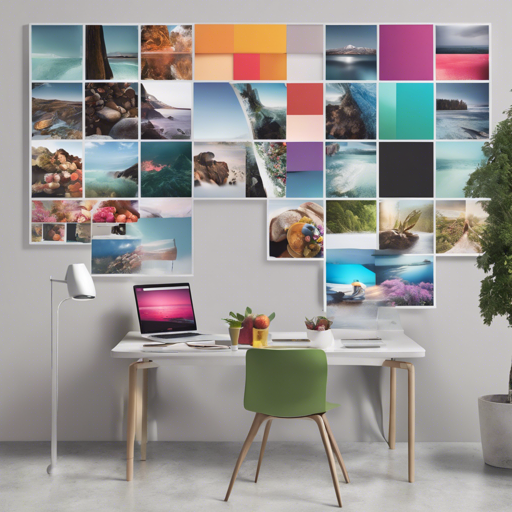
Welcome to the ultimate guide on setting up a flexible and gapless image gallery similar to Google Images and 500px.com. With the Flexbin layout, you’ll get stunning visuals and an intuitive experience on both desktop and mobile devices — all through pure CSS without any JavaScript dependencies. Let’s dive into the process!
Get Started with Flexbin
Setting up Flexbin is straightforward and can be accomplished in just a few simple steps:
Download Flexbin
- Download this Git repo as a zip or tar.gz file.
- Using NPM, run:
npm install flexbin - Bower support is coming soon! (TODO)
Importing Flexbin
You can include Flexbin in your HTML by using flexbin.css or by importing it in your SaSS project.
- For HTML:
<link href="pathtoflexbin.css" type="text/css" rel="stylesheet" media="all"> - For SaSS:
@import "pathtoflexbin.scss";
Markup for Flexbin
The HTML markup is simple and clean. Here’s how you can structure it:
<div class="flexbin">
    <a href="product1.html">
        <img src="images1.jpg">
    </a>
    <a href="product2.html">
        <img src="images2.jpg">
    </a>
    <a href="product3.html">
        <img src="images3.jpg">
    </a>
    …
</div>
If you want extra space surrounding the Flexbin gallery, simply use the flexbin-margin class:
<div class="flexbin flexbin-margin">
    <a href="product1.html">
        <img src="images1.jpg">
    </a>
    <a href="product2.html">
        <img src="images2.jpg">
    </a>
    <a href="product3.html">
        <img src="images3.jpg">
    </a>
    …
</div>
Customizing with SaSS
With SaSS, you can easily tailor Flexbin for different screen sizes:
$flexbin-row-height: 200px; // height of image rows
$flexbin-space: 10px; // space between images
$flexbin-tablet-max: 800px;
$flexbin-row-height-tablet: 150px;
$flexbin-space-tablet: 8px;
$flexbin-phone-max: 400px;
$flexbin-row-height-phone: 100px;
$flexbin-space-phone: 4px;

.my-flexbin {
    @include flexbin(100px, 8px);
}

.my-flexbin-large {
    @include flexbin(400px, 20px);
}

@media (max-width: 768px) {
    @include flexbin(200px, 10px);
}
Essentially, think of Flexbin as a framework for a neatly organized bookshelf. If you imagine each image as a book, Flexbin allows those books to sit snugly together without gaps, uneven rows, or any adverse deformation. Just like a meticulous librarian arranges books, the Flexbin layout methodically positions each image in harmony with the others, ensuring that everything looks visually appealing and maintains its integrity in different lighting or angles (screen sizes in our case).
Troubleshooting Tips
Encounter any issues? Here are a few troubleshooting ideas:
- Ensure that the path to your CSS or SCSS file is correct.
- Check that you have all dependencies installed properly if using package managers.
- If your images are not displaying correctly, verify that the image paths are accurate.
- Make sure to test your gallery on different browsers (Chrome 31+, Firefox 36+, Safari 10+) to ensure compatibility.
For more insights, updates, or to collaborate on AI development projects, stay connected with fxis.ai.
Conclusion
At fxis.ai, we believe that such advancements are crucial for the future of AI, as they enable more comprehensive and effective solutions. Our team is continually exploring new methodologies to push the envelope in artificial intelligence, ensuring that our clients benefit from the latest technological innovations.
Now that you know how to set up and customize your very own Flexbin gallery, it’s time to let your creativity shine. Happy coding!