
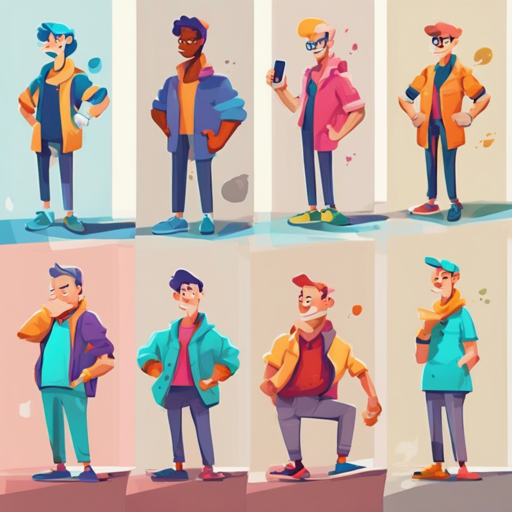
Creating captivating images of a specific character in various poses can be quite rewarding, especially in projects involving storytelling, animation, or game design. In this guide, we’ll walk you through the process of using the Consistent Character tool on Replicate and how to run it locally with ComfyUI.
Getting Started with the Workflow
This section will explain how to utilize the workflow on Replicate. You can easily generate images of your selected character by following these steps:
- Visit the [Replicate page](https://replicate.com/fofr/consistent-character) for Consistent Character.
- Use the provided workflow in ComfyUI; however, note that it can only generate one pose at a time.
- You can find this workflow on GitHub: [workflow_ui.json](https://github.com/fofr/cog-consistent-character/blob/main/workflow_ui.json).
Developing Locally
If you prefer to develop locally, here’s how to get everything set up:
-
- Clone the repository by running the following command in your terminal:
sh git clone --recurse-submodules https://github.com/fofr/cog-consistent-character.git-
- Next, install all the custom nodes by running this script:
sh scripts/install_custom_nodes.py- To view the list of custom nodes you just installed, check this file: [custom_nodes.json](https://github.com/fofr/cog-consistent-character/blob/main/custom_nodes.json).
Running the Web UI from Your Cog Container
Now that you’ve set everything up, follow these steps to run the Web UI:
1. GPU Machine
Start the Cog container and expose port 8188 by executing:
sh sudo cog run -p 8188 bashThis command starts the Cog container, allowing you to access it.
2. Inside Cog Container
Once inside the Cog container, navigate to the ComfyUI directory and start the server:
sh cd ComfyUIpython main.py --listen 0.0.0.03. Local Machine Access
Finally, access the server using your GPU machine’s IP and the exposed port:
http://gpu-machines-ip:8188You will be greeted by the classic ComfyUI web form!
Troubleshooting Tips
If you face any issues during the process, consider the following troubleshooting steps:
- Make sure all dependencies are installed correctly by re-running the installation script.
- If the Cog container is not accessible, double-check that you’ve exposed the correct port.
- Ensure that your GPU setup meets the required specifications for running the application smoothly.
For more insights, updates, or to collaborate on AI development projects, stay connected with fxis.ai.
Explaining the Code Analogy
Think of the code setup like building your very own gaming console. The cloning of the repository is akin to bringing home the console, while installing custom nodes represents laying down the necessary wiring to ensure everything functions smoothly. Running the Web UI is like powering on the console, allowing you to interact with all the games you have installed (the poses of your character, in this case).
At fxis.ai, we believe that such advancements are crucial for the future of AI, as they enable more comprehensive and effective solutions. Our team is continually exploring new methodologies to push the envelope in artificial intelligence, ensuring that our clients benefit from the latest technological innovations.