
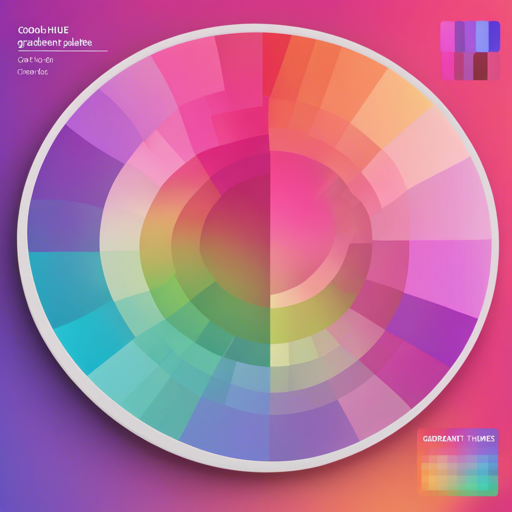
If you’re ready to elevate your design game with stunning gradients, you’re in for a treat with CoolHue! This tool offers a handpicked collection of 60 unique gradient hues, and you can even personalize them to fit your individual taste. Here’s a user-friendly guide to help you get started and troubleshoot any potential hiccups along the way.
Installing CoolHue
To create your very own personalized collection of gradient palettes using CoolHue, make sure you have the bower package manager installed on your machine. Follow these steps for installation:
- Open your terminal and run bower install coolhue.
- Navigate to the CoolHue directory using the command cd bower_components/coolhue.
- Run npm install to install all the necessary node modules.
- Once completed successfully, execute npm run coolhue to start the CoolHue application.
- All the gradients you see in the browser are rendered from the scripts/coolhue.json file. You can customize this by updating the hex codes in the coolhue.json object to create your unique gradient palette.
Understanding the JSON Rendering
The coolHue.json file can be thought of as a recipe book for your gradients. Imagine you’re a chef wanting to create a new dish; you can tweak the ingredients (hex codes) to suit your flavor preferences (design style). This flexibility makes it super easy to experiment with different gradient combinations until you find that perfect one!
{
    "gradients": [
        {
            "name": "Sunset",
            "hex": ["#FF5F6D", "#FFC371"]
        },
        {
            "name": "Ocean",
            "hex": ["#00C9FF", "#92FE9D"]
        }
    ]
}
Including CoolHue in Your npm Workflow
CoolHue is also accessible as a node module. You can read more about how it works on npm to get started. If you’re ready, simply use the installation command:
npm install --save-dev coolhueUsing the Sketch App Plugin
For those who love working in Sketch, you can install the CoolHue plugin to access your gradients right from the Sketch menu. To get started:
- Download the Coolhue.sketchplugin.zip.
- Extract the archive and install the plugin for the Sketch app.
- Access it from the Menu Bar in Sketch by navigating to Plugins > Coolhue > Palette.

Download Gradient Palettes for Design Software
You can download the CoolHue Gradient Palette for different software:
Troubleshooting
In case you encounter any issues during installation or while rendering your gradients, here are some ideas to help you troubleshoot:
- Make sure you have bower and npm properly installed on your machine. You can check this by running the bower -v and npm -v commands in your terminal.
- If your gradients are not rendering correctly, double-check the structure of your coolhue.json file. Ensure there are no syntax errors or missing commas.
- Restart your terminal or development server to ensure all changes are applied.
- If you need further assistance, feel free to reach out for insights, updates, or collaborations on AI development projects at For more insights, updates, or to collaborate on AI development projects, stay connected with fxis.ai.
At fxis.ai, we believe that such advancements are crucial for the future of AI, as they enable more comprehensive and effective solutions.
Our team is continually exploring new methodologies to push the envelope in artificial intelligence, ensuring that our clients benefit from the latest technological innovations.
Conclusion
With CoolHue, creating stunning, personalized gradient palettes is only a few steps away. Whether you’re a seasoned designer or just starting, these gradients will surely enhance your projects and creative expressions!