
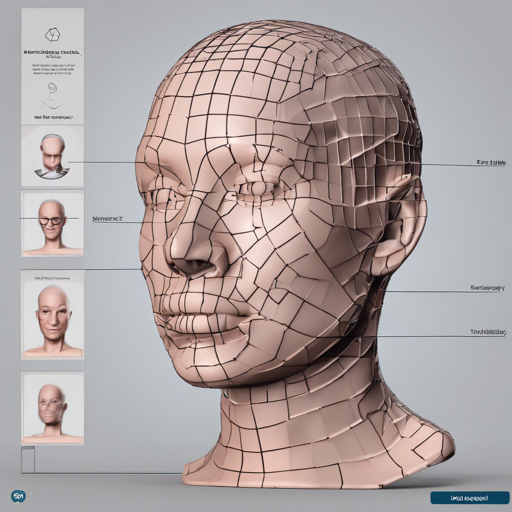
Welcome to a hands-on guide that will introduce you to the eos library, a lightweight header-only 3D Morphable Face Model fitting library written in modern C++11/14. This guide aims to make it easy for you to explore the functionalities this library offers.
What is eos?
At its core, eos is designed to help researchers and developers fit 3D models to 2D images. It supports various morphable face models and offers basic operations, camera fitting, and has even extended its functionalities to Python. Whether you’re looking to extract poses, shapes, or expressions from images, eos has you covered.
Key Features of eos
- MorphableModel and PcaModel classes for 3D Face Models.
- Supports various face models such as Surrey, Basel, and Liverpool-York models.
- Fast fitting algorithms for shapes, expressions, and poses.
- Python bindings for easy accessibility.
- Experimental features like non-linear fitting and model viewer.
Setting Up eos
Here’s how you can get started with using eos in your own project. Follow these steps:
1. Clone the Repository
To begin, clone the eos repository with the required submodules:
git clone --recursive https://github.com/patrikhuber/eos.git2. Include Required Directories
Add the following directories to your include path:
- eos/include
- eos/3rdparty/cereal/include
- eos/3rdparty/nanoflann/include
- eos/3rdparty/eigen/Eigen
- eos/3rdparty/eigen3-nnl/src
- eos/3rdparty/toml11
3. Build the Examples and Tests
You need the following dependencies to build the examples:
- CMake (3.8.2 or higher)
- Boost libraries
- OpenCV
In the terminal, navigate to your new eos directory and run:
mkdir build
cd build
cmake -G your_favourite_generator ..
make
make install
4. Running the Example
To fit a 3D face model from a 2D image, use the command:
fit-model -i data/image_0010.png -l data/image_0010.ptsThis will generate an OBJ file with the shape and a PNG with the extracted texture map.
Understanding the Code: An Analogy
Imagine you are a sculptor, and you have a block of marble. The eos library is your toolkit, giving you the necessary tools to chisel away at the marble to create a beautiful sculpture—in this case, a 3D face model. Each command in the supplied code is like a specific tool (chisel, hammer, etc.) that allows you to make precise adjustments to your sculpture. For instance, when you call draw_sample(), it’s like making a gentle chisel stroke to reveal the features of your face model from the marble block.
Troubleshooting
If you run into issues while installing or using eos, here are a few troubleshooting tips:
- Ensure you have all required dependencies installed and that they match the specified versions.
- If you encounter compiler issues, verify that you are using a compatible version mentioned in the README.
- Check that you have cloned the repository with the
--recursiveflag to include all necessary submodules. - Make sure your CMake configurations are set appropriately for your operating system.
For more insights, updates, or to collaborate on AI development projects, stay connected with fxis.ai.
Conclusion
At fxis.ai, we believe that such advancements are crucial for the future of AI, as they enable more comprehensive and effective solutions. Our team is continually exploring new methodologies to push the envelope in artificial intelligence, ensuring that our clients benefit from the latest technological innovations.
By following this guide, you should now be comfortable setting up and using eos for your 3D face modeling needs. Happy modeling!