
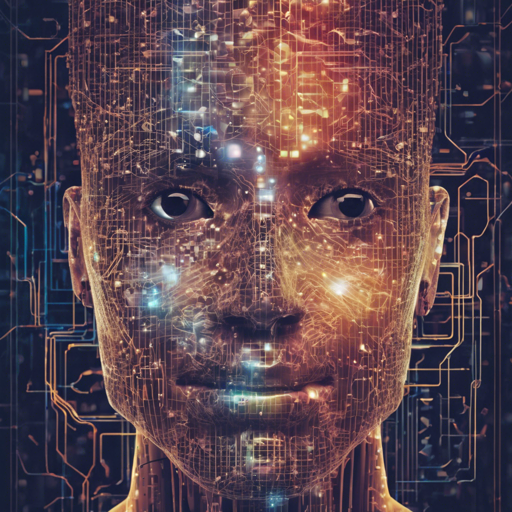
In the ever-evolving world of artificial intelligence, creating stunning visuals can often feel like an art form. Whether you are a developer, a creator, or simply an enthusiast, understanding how to correctly use AI models can elevate your projects to new heights. This article will delve into the nitty-gritty details of using specific AI generation prompts to achieve remarkable results.
Getting Started with the AI Model
To leverage the model mentioned, here’s a streamlined guide to kickstart your image generation journey:
- Environment Setup: Ensure you have access to the AI model available at Mage.Space.
- Version Recommendation: For improved generation quality in version 2.0, it’s recommended to use a Variational Autoencoder (VAE) which helps minimize blue artifacts. You can find a VAE to use at this link.
- Creating Your Prompt: Begin by constructing a prompt that details the subject and desired style of the image.
Crafting an Effective Prompt
Think of your prompt as a recipe for crafting your visual creation. Just as precise ingredients lead to the perfect dish, well-detailed prompts lead to stunning images. Here’s what your prompt should look like:
Prompt: bRAW photo, *subject*, (high detailed skin:1.2), 8k uhd, dslr, soft lighting, high quality, film grain, Fujifilm XT3Here’s an example:
Example: b RAW photo, a close up portrait photo of 26 y.o woman in wastelander clothes, long haircut, pale skin, slim body, background is city ruins, (high detailed skin:1.2), 8k uhd, dslr, soft lighting, high quality, film grain, Fujifilm XT3Using Negative Prompts
Just like a well-prepared dish should exclude undesirable ingredients, negative prompts help ensure unwanted elements don’t appear in your images. Here’s an example of a negative prompt:
Negative Prompt: b(deformed iris, deformed pupils, semi-realistic, cgi, 3d, render, sketch, cartoon, drawing, anime:1.4), text, close up, cropped, out of frame, worst quality, low quality, jpeg artifacts, ugly, duplicate, morbid...This long list ensures your generated images steer clear of any amateurish traits by filtering out unwanted features.
Configuration and Settings
Now let’s dive into the technical settings, which are like the oven temperature and cooking time in our recipe:
- Sampling Methods: Use either Euler A or DPM++ 2M Karras with 25 steps.
- CFG Scale: Adjust to a range of 3.5 – 7 depending on how much freedom you want to give the model for creative input.
- High-Resolution Fix: Set up the HiRes. fix with a latent upscaler.
- Denoising Strength: Best set between 0.25 – 0.45 to strike a balance between smoothness and detail.
- Upscaling: Use an upscaling factor of 1.1 to 2.0 to enhance image dimensions without losing quality.
Troubleshooting Common Issues
Even the best recipes can lead to unexpected results. If you encounter issues such as lack of detail or unwanted artifacts, you might need to tweak a few settings:
- Check if the correct version of the model is being used.
- Ensure that your prompts are specific and clear.
- Experiment with different CFG scales to find the sweet spot.
- Adjust the denoising strength based on the output quality.
For more insights, updates, or to collaborate on AI development projects, stay connected with fxis.ai.
Conclusion
As you embark on this exciting journey of AI image generation, remember that practice and experimentation are key. By using detailed prompts and appropriate settings, you can refine your outputs and create striking visuals. At fxis.ai, we believe that such advancements are crucial for the future of AI, as they enable more comprehensive and effective solutions. Our team is continually exploring new methodologies to push the envelope in artificial intelligence, ensuring that our clients benefit from the latest technological innovations.