
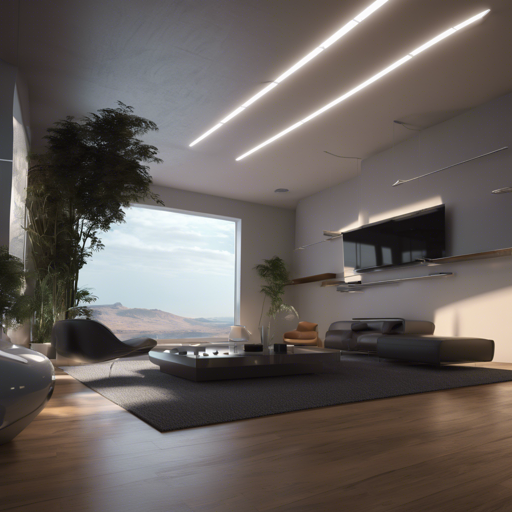
Are you ready to dive into the breathtaking world of AI-generated imagery? Welcome to the enchanting realm of Photon v1, a model designed for generating photorealistic images that astonish and inspire. In this guide, we will walk you through the steps to utilize the Photon model effectively, along with troubleshooting tips to help you navigate any hiccups along the way.
What You Need
- Python installed on your system
- Access to a GPU (CUDA) for optimal performance
- The Diffusers library installed (you can find it here)
- The Photon v1 model
Step-by-Step Instructions
Let’s kick things off by coding our way to stunning visuals:
from diffusers import StableDiffusionPipeline
import torch

model_id = "sam749/Photon-v1"
pipe = StableDiffusionPipeline.from_pretrained(model_id, torch_dtype=torch.float16)
pipe = pipe.to("cuda")

prompt = "masterpiece, best quality, 1girl, (colorful),(delicate eyes and face), volumatic light, ray tracing, bust shot, extremely detailed CG unity 8k wallpaper, solo, smile"
image = pipe(prompt).images[0]
image.save("result.png")
Breaking Down the Code
Think of the code above as a recipe guiding you through a culinary experience where each ingredient plays a vital role in creating a masterpiece:
- Imports: Just like gathering your ingredients, we first import the necessary libraries:
StableDiffusionPipelinefor the model andtorchwhich is crucial for computing. - Model ID: Here, we specify the “sam749/Photon-v1” model, which is like deciding which specific recipe to follow.
- Pipeline Initialization: Similar to setting up your cooking environment, we load and prepare our model using
from_pretrained, tuning it for better performance. - Moving to GPU: To achieve faster and more efficient results, we transfer the model to CUDA (like moving your cooking to a high-efficiency stove).
- Crafting the Prompt: The prompt contains all the elements you wish to see in your image—think of it as the flavor profile you want to achieve in your dish.
- Generating the Image: Finally, we let the magic unfold, producing a stunning image that’s saved as
result.png, ready for the world to admire!
Troubleshooting Common Issues
Even the best recipes may encounter some kitchen mishaps. Here are a few common issues and their solutions:
- CUDA Not Detected: Ensure your GPU drivers are up-to-date and that CUDA is correctly installed.
- Memory Errors: Reduce the complexity of your prompt or lower the image resolution to use less memory.
- Model Loading Fails: Check your internet connection and ensure that the
model_idis correctly specified.
For more insights, updates, or to collaborate on AI development projects, stay connected with fxis.ai.
Final Thoughts
At fxis.ai, we believe that such advancements are crucial for the future of AI, as they enable more comprehensive and effective solutions. Our team is continually exploring new methodologies to push the envelope in artificial intelligence, ensuring that our clients benefit from the latest technological innovations.
Now that you have your toolkit ready, go ahead and create breathtaking photorealistic images that captivate and inspire. Happy coding!