
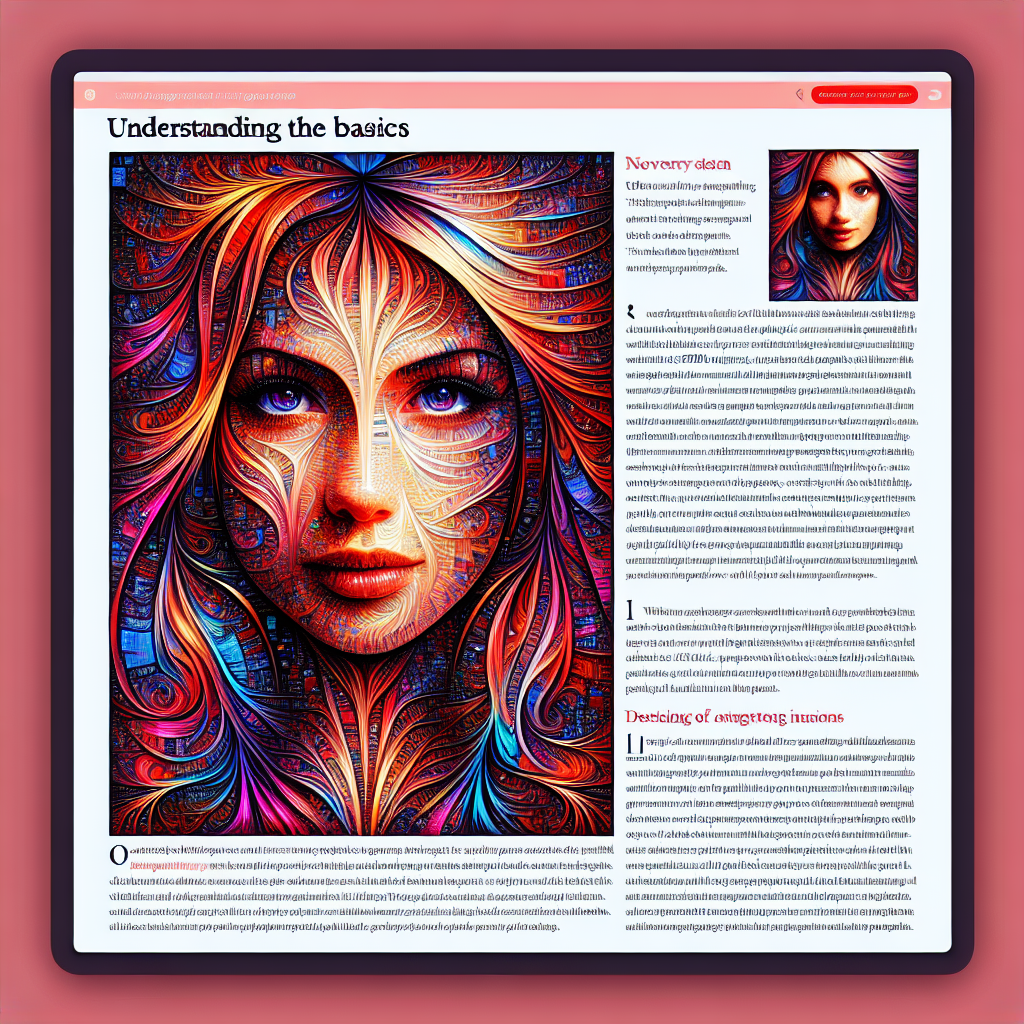
Creating high-quality images from simple text prompts has never been easier, thanks to the innovative SDXL-Lightning model. In this article, we will walk you through how to use this lightning-fast text-to-image generation model effectively, and we’ll make sure you’ve got all the troubleshooting insights you need!
Understanding the Basics
SDXL-Lightning is like a talented artist who can interpret your words and create visual masterpieces in just a few minutes. Imagine telling your friend to paint a picture of “a girl smiling,” and in seconds, they whip out a vibrant, intricate artwork. That’s the power of SDXL-Lightning!
This model leverages advanced techniques to distill knowledge from existing models (like Stability AI’s Stable Diffusion) into something even faster and more effective. It offers different configurations, including 1-step, 2-step, 4-step, and 8-step versions, each with varying levels of quality. Think of it as having different brushes in an artist’s toolbox—each one gives a unique finish to the artwork.
Getting Started with Code
You’re ready to create images! To do so, you will use a Python library called `diffusers`. Below are instructions tailored for different configurations.
2-Step, 4-Step, 8-Step UNet Configuration
1. Install Required Libraries:
Make sure to have the `torch`, `diffusers`, and `safetensors` libraries installed.
2. Load the Model: Use the appropriate checkpoint based on your requirements. Here’s how to do it:
“`python
import torch
from diffusers import StableDiffusionXLPipeline, UNet2DConditionModel, EulerDiscreteScheduler
from huggingface_hub import hf_hub_download
from safetensors.torch import load_file
base = “stabilityai/stable-diffusion-xl-base-1.0”
repo = “ByteDance/SDXL-Lightning”
ckpt = “sdxl_lightning_4step_unet.safetensors” # Correct checkpoint for your step setting!
# Load model.
unet = UNet2DConditionModel.from_config(base, subfolder=”unet”).to(“cuda”, torch.float16)
unet.load_state_dict(load_file(hf_hub_download(repo, ckpt), device=”cuda”))
pipe = StableDiffusionXLPipeline.from_pretrained(base, unet=unet, torch_dtype=torch.float16, variant=”fp16″).to(“cuda”)
# Scheduler adjustments
pipe.scheduler = EulerDiscreteScheduler.from_config(pipe.scheduler.config, timestep_spacing=”trailing”)
# Generate an image
pipe(“A girl smiling”, num_inference_steps=4, guidance_scale=0).images[0].save(“output.png”)
“`
2-Step, 4-Step, 8-Step LoRA Configuration
If you’re using a non-SDXL base model, follow these steps:
import torch
from diffusers import StableDiffusionXLPipeline, EulerDiscreteScheduler
from huggingface_hub import hf_hub_download

base = "stabilityai/stable-diffusion-xl-base-1.0"
repo = "ByteDance/SDXL-Lightning"
ckpt = "sdxl_lightning_4step_lora.safetensors"  # Use the correct checkpoint for your step setting!

# Load model.
pipe = StableDiffusionXLPipeline.from_pretrained(base, torch_dtype=torch.float16, variant="fp16").to("cuda")
pipe.load_lora_weights(hf_hub_download(repo, ckpt))
pipe.fuse_lora()

# Scheduler adjustments
pipe.scheduler = EulerDiscreteScheduler.from_config(pipe.scheduler.config, timestep_spacing="trailing")

# Generate an image
pipe("A girl smiling", num_inference_steps=4, guidance_scale=0).images[0].save("output.png")
Important Notes for the 1-Step UNet Configuration
The 1-step model is experimental, and its quality might not be as robust as the 2-step variant. Use with caution and only if necessary:
import torch
from diffusers import StableDiffusionXLPipeline, UNet2DConditionModel, EulerDiscreteScheduler
from huggingface_hub import hf_hub_download
from safetensors.torch import load_file

base = "stabilityai/stable-diffusion-xl-base-1.0"
repo = "ByteDance/SDXL-Lightning"
ckpt = "sdxl_lightning_1step_unet_x0.safetensors"  # Use the correct checkpoint for your step setting!

# Load model.
unet = UNet2DConditionModel.from_config(base, subfolder="unet").to("cuda", torch.float16)
unet.load_state_dict(load_file(hf_hub_download(repo, ckpt), device="cuda"))
pipe = StableDiffusionXLPipeline.from_pretrained(base, unet=unet, torch_dtype=torch.float16, variant="fp16").to("cuda")

# Scheduler adjustments
pipe.scheduler = EulerDiscreteScheduler.from_config(pipe.scheduler.config, timestep_spacing="trailing", prediction_type="sample")

# Generate an image
pipe("A girl smiling", num_inference_steps=1, guidance_scale=0).images[0].save("output.png")
Troubleshooting Tips
Here are some common issues you might encounter while using SDXL-Lightning, along with their solutions:
– CUDA Errors: Ensure that you have a compatible GPU and that PyTorch is configured to run on CUDA.
– Checkpoints Not Found: Double-check that you are referencing the correct checkpoint file names and paths.
– Quality Issues: If images aren’t looking great, try increasing the `num_inference_steps` or adjusting the `guidance_scale`.
For more troubleshooting questions/issues, contact our fxis.ai data scientist expert team.
Conclusion
With SDXL-Lightning, generating beautiful images from text is as simple as typing a command! Now it’s your turn to unleash your creativity and see what stunning visuals you can create. Happy coding!