
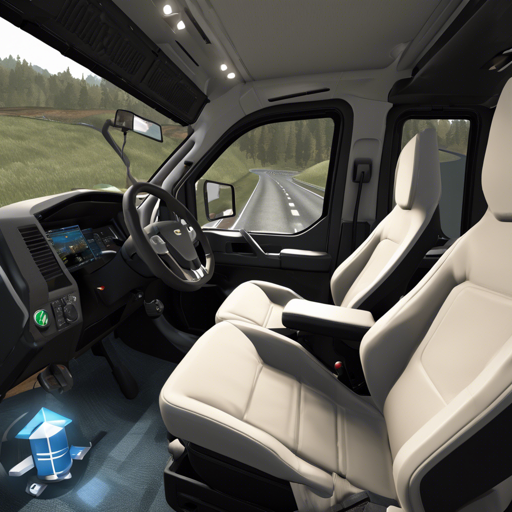
Welcome to the exciting world of ETSAuto 2, an autonomous driving system designed to enhance your experience in Euro Truck Simulator 2! In this guide, we will take you through the features, environment setup, and usage instructions in a user-friendly format. Let’s get you on the road!
Introduction
ETSAuto 2 offers a robust suite of features that includes Lane Centering Control (LCC), Lane Change Assistance (ALC), and Forward Collision Warning (FCW) capabilities. This system is developed entirely in pure Python and is primarily for Windows users. The phenomenal aspect of ETSAuto 2 is its capability to utilize ONNXRuntime for inference, with additional support for the TensorRT framework, and it is optimized for Nvidia GPUs.
Features
Here are some of the key features you can expect:
- Lane Centering Control (LCC): Works effectively at speeds of up to 80 km/h.
- Lane Change Assistance (ALC): Assists at lower speeds of 15 km/h and efficiently at 80 km/h.
- Forward Collision Warning (FCW): Helps ensure safety through alert mechanisms.
Supported scenarios include driving in daytime (full-feature support), nighttime (caution recommended for lane changes), and various types of roads including highways and rural roads.
Environment Setup
Before diving into the fun, you need to set up the environment. Here’s how:
For detailed instructions, refer to the BUILD.md documentation.
- This project mainly utilizes ONNX Runtime for inference since version 2.0, with current support for Nvidia graphics cards and planned support for AMD.
- Due to certain restrictions, the program is only executable on Windows. If you’re a Linux enthusiast, contributions for screen capture and vjoy control alternatives are highly welcomed!
Usage Instructions
Once set up, it’s time to hit the virtual roads! Here are the instructions to get started:
- Program Entry: Simply double-click
ETSAuto.batto launch the program. - Key Instructions: Control the system using these keyboard shortcuts:
Key       Function
---       ---
darr;     Manual
larr;     Lateral
rarr;     Navigation
uarr;     Assistance
num 0     Straight           v 80kmh
num 1     Left Turn
num 3     Right Turn
num 4     Left Lane Change   15kmh v 80kmh
num 6     Right Lane Change  15kmh v 80kmh
ctrl+q    Exit
Troubleshooting
While using ETSAuto 2, you may encounter a few hiccups. Here are some troubleshooting tips:
- Issue: The application does not launch.
- Solution: Ensure that you have the required graphics drivers installed. Check if ONNX Runtime is set up correctly.
- Issue: Features are not functioning as expected.
- Solution: Confirm you are operating within the recommended scenarios—certain features do not work on rural or city roads.
For more insights, updates, or to collaborate on AI development projects, stay connected with fxis.ai.
Conclusion
To sum it up, ETSAuto 2 is not just a tool; it’s your partner in the immersive gameplay of Euro Truck Simulator 2! Follow the setup instructions, familiarize yourself with the features, and you’ll be cruising in no time.
At fxis.ai, we believe that such advancements are crucial for the future of AI, as they enable more comprehensive and effective solutions. Our team is continually exploring new methodologies to push the envelope in artificial intelligence, ensuring that our clients benefit from the latest technological innovations.