
The IntelliJ IDEA PhpStorm Laravel Plugin is a powerful tool that enhances your Laravel development experience within the PhpStorm IDE. Whether you’re a seasoned Laravel developer or just dipping your toes into this popular PHP framework, this guide will help you install and set up the plugin efficiently.
Getting Started with the Laravel Plugin
Before we dive into the installation process, let’s understand the importance of the Laravel Plugin. Think of it as a Swiss Army knife for Laravel developers – packed with features and tools to streamline your development process.
Installation Steps
Follow these simple steps to get the Laravel Plugin up and running:
- Step 1: Open PhpStorm, then navigate to Settings > Plugins.
- Step 2: In the Plugin Marketplace, search for “Laravel Plugin.”
- Step 3: Click Install and wait for the installation to complete.
- Step 4: After installation, you must activate the plugin for your project. Go to File > Settings > PHP > Laravel and check Enable plugin for this project.
Note: It’s crucial to install and use the Laravel IDE Helper so that PhpStorm can effectively find your Laravel classes.
Understanding Blade Template Namespace
When working with Blade templates, you may need to register custom paths. You can do this using ide-blade.json files located in directories relevant to your templates. The paths should be relative to their file positions.
Here’s how the structure of your ide-blade.json should look:
{
    "namespaces": [
        {
            "namespace": "foo",
            "path": "res"
        },
        {
            "namespace": "foo"
        }
    ]
}
Remember, the namespace must not use a dot (.) delimiter. If you try to use a namespace like foo.bar, the plugin will not function correctly!
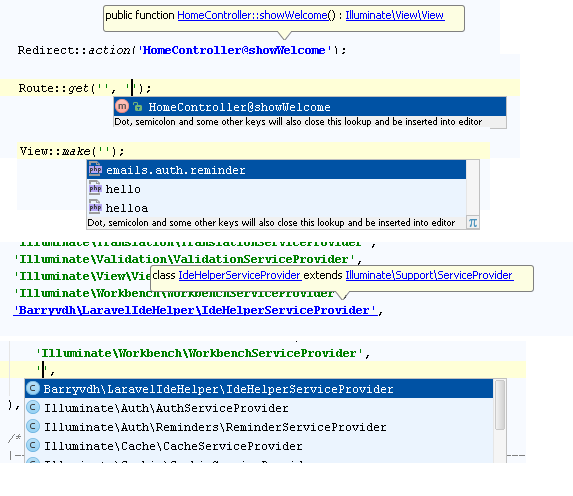
Screenshots
Troubleshooting
If you encounter issues during installation or setup, consider these troubleshooting tips:
- Ensure all paths in your ide-blade.json are correct and relative to the file’s position.
- If you’re unable to find classes in your Laravel project, double-check that the Laravel IDE Helper is installed properly.
- Restart PhpStorm after any changes to settings or installations.
- Check the plugin repository for updates in case the plugin has been revised.
For more insights, updates, or to collaborate on AI development projects, stay connected with fxis.ai.
Conclusion
By following these steps, you should now have the IntelliJ IDEA PhpStorm Laravel Plugin installed and configured, ready to enhance your development experience. At fxis.ai, we believe that such advancements are crucial for the future of AI, as they enable more comprehensive and effective solutions. Our team is continually exploring new methodologies to push the envelope in artificial intelligence, ensuring that our clients benefit from the latest technological innovations.