
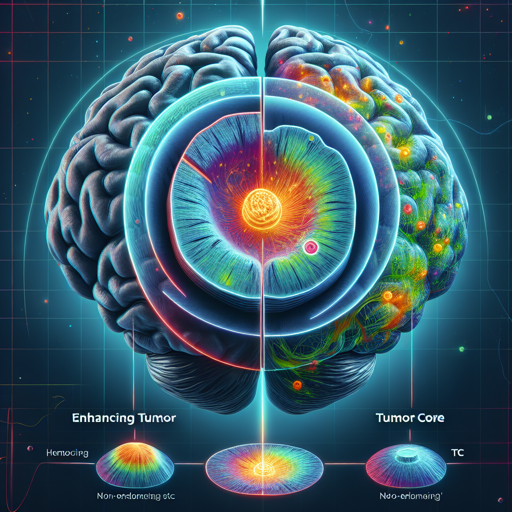
In the world of medical imaging, brain tumor segmentation plays a crucial role in diagnosis and treatment planning. Using MONAI’s pre-trained model for volumetric (3D) segmentation of brain tumor subregions from multimodal MRIs, you can achieve precise results.
Understanding the Model
This model is like an expert guide through the intricate landscape of brain MRIs, navigating through three nested tumor subregions:
- Enhancing Tumor (ET): This area shines brightly like a neon sign in T1c MRI scans, indicating hyper-intensity compared to T1 and healthy tissues.
- Tumor Core (TC): Think of this as the heart of the tumor – the bulk typically resected during surgery, including necrotic and non-enhancing parts.
- Whole Tumor (WT): The entire ecosystem of the disease, which encompasses TC and extends into the surrounding edema, depicted in FLAIR scans.
Data Preparation
Data for training comes from the Multimodal Brain Tumor Segmentation Challenge (BraTS) 2018, which consists of:
- 3 tumor subregions
- 285 3D volumes (4 channels each)
- 250 labeled data divided into training, validation, and testing sets.
Preprocessing Your Data
Before diving into training, you must prepare your data list. It’s similar to assembling puzzle pieces before trying to complete the picture:
python scripts/prepare_datalist.py --path your-brats18-dataset-pathSetting Up Training Configuration
To train the model effectively, ensure that your configurations are optimized, similar to tuning an instrument before a performance:
- GPU: Minimum 16GB of GPU memory.
- Input Size: 224 x 224 x 144.
- Optimizer: Adam with a learning rate of 1e-4.
- Loss: DiceLoss.
Executing Training
Now that everything is set, it’s time to run the training. This step is akin to putting your plan into action:
python -m monai.bundle run --config_file config/train.json --dataset_dir actual_dataset_pathEvaluating Model Performance
Your model’s performance is assessed using the Dice score, much like a scorecard after a game:
- Tumor Core (TC): 0.8559
- Whole Tumor (WT): 0.9026
- Enhancing Tumor (ET): 0.7905
- Average: 0.8518
Troubleshooting
If you encounter issues during training, consider these troubleshooting tips:
- Ensure your GPU has sufficient memory.
- Check that your dataset path is correctly specified in config files.
- Review any error messages and consult the corresponding documentation.
For more insights, updates, or to collaborate on AI development projects, stay connected with fxis.ai.
Speeding Up Inference with TensorRT
For those who need performance optimization, consider using TensorRT. It’s similar to upgrading your car – it helps you reach your destination faster without compromising on power.
python -m monai.bundle trt_export --net_id network_def --filepath models/model_trt.ts --ckpt_file models/model.pt --meta_file configs/metadata.json --config_file config/inference.json --precision fp32Conclusion
With MONAI’s model and the setup steps detailed here, you’re well-equipped to tackle brain tumor segmentation with precision and speed. This endeavor not only enhances your skills but also contributes to the greater medical community.
At fxis.ai, we believe that such advancements are crucial for the future of AI, as they enable more comprehensive and effective solutions. Our team is continually exploring new methodologies to push the envelope in artificial intelligence, ensuring that our clients benefit from the latest technological innovations.