
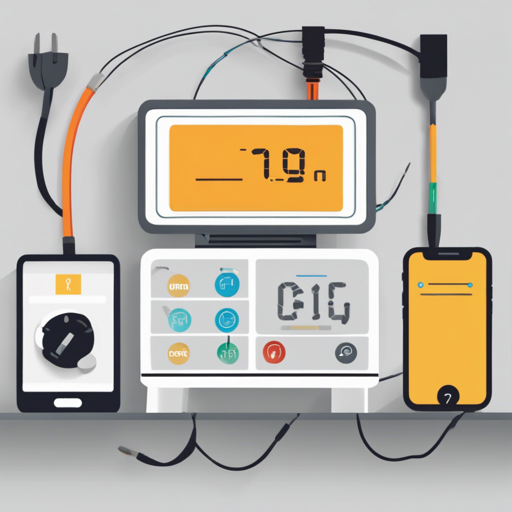
In South Africa, where electricity challenges like load-shedding are commonplace, many of us find ourselves yearning for a reliable way to monitor our power supply. Regular apps can be useful, but what about those unexpected outages? This guide will walk you through the process of creating a custom Electricity Monitor using a Raspberry Pi 3, Android Things, and Firebase Realtime Database.
Introducing the Electricity Monitor
Imagine your Electricity Monitor as a loyal pet that always alerts you about the status of your electricity. When the power’s on, it’s wagging its tail, displaying a sunny icon on your screen; but when the power’s out, it sends you a sad face notification. That’s exactly what our project achieves!


Setup Requirements
Ready to embark on this journey? Here’s what you need to get started:
- 1. Check out the repository.
- 2. Create a new Firebase Project here.
- 3. Download the google-service.json file from the Firebase Console to both the app folder and the companion-app folder.
- 4. Set the Realtime database rules to be read and write for everyone (Firebase Console – Database – Rules).
rules: {..read: true,.write: true}
- (WARNING: This means there is NO security on our database – you should not have these rules in production)
- 5. Deploy the “app” module to the Raspberry Pi or equivalent Android Things device (you need to set up your Pi with the Android Things OS).
- 6. Deploy the “companion-app” module to your phone.
- 7. If you have electricity, you’ll see a house with lights on and the accumulated time you have had power for. If there is no electricity, the Raspberry Pi will lose its power source, triggering the onDisconnect() callback on the Firebase server, which will then reflect the outage on your “companion-app”.
Setting Up Push Notifications with Firebase Cloud Functions
Want to be alerted instantly when your power goes out? Follow these steps to enable notifications:
- 1. Ensure you have NodeJS and NPM installed. Follow the guide here.
- 2. Install Firebase CLI tools:
npm install -g firebase-tools - 3. Navigate to the cloud-functions folder:
cd cloud-functionsand install dependencies:npm install - 4. Login with Firebase (this will prompt you to log in via your browser):
firebase login - 5. Run the command to deploy Firebase functions:
firebase deploy --only functions - 6. You can check the functions in the Firebase Console.

Now, when your Raspberry Pi disconnects from power or the internet, you’ll receive a push notification on your device.

Troubleshooting Ideas
If you encounter problems during setup or while using the Electricity Monitor, here are some common troubleshooting tips:
- Double-check your Firebase rules. Ensure they match what’s required for testing.
- Make sure the Raspberry Pi is properly powered and connected to the internet.
- Verify that the google-service.json file is in the correct directories.
- If notifications are not working, check that the Firebase functions were correctly deployed.
For more insights, updates, or to collaborate on AI development projects, stay connected with fxis.ai.
Final Thoughts
While this Electricity Monitor might seem like an elaborate solution, it’s effectively monitoring the Raspberry Pi’s internet connection, which is generally a close estimate of actual power availability. Although there are simpler ways to check your power status, this tailored approach could be invaluable for problem-solving in areas prone to unscheduled outages.
At fxis.ai, we believe that such advancements are crucial for the future of AI, as they enable more comprehensive and effective solutions. Our team is continually exploring new methodologies to push the envelope in artificial intelligence, ensuring that our clients benefit from the latest technological innovations.