
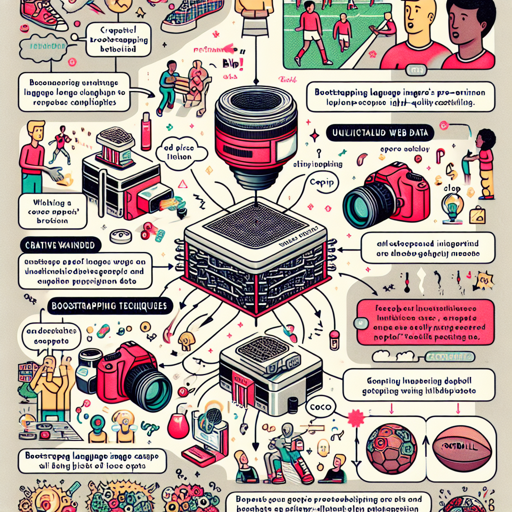
Are you ready to dive into the world of BLIP? The Bootstrapping Language-Image Pre-training model offers a seamless way to perform image captioning by leveraging both image understanding and generation capabilities. In this article, we’ll guide you through the process of using BLIP for image captioning, whether you want to do it conditionally or unconditionally.
What is BLIP?
BLIP stands for Bootstrapping Language-Image Pre-training, a protocol that significantly enhances the performance of various vision-language tasks. By utilizing noisy web data and creative bootstrapping techniques, BLIP generates high-quality captions for images effectively. The model was fine-tuned on a curated football dataset after being pre-trained on the COCO dataset.
Getting Started with BLIP
Before you begin, make sure you have the necessary libraries installed. This typically includes transformers and PIL. You can run this in a Jupyter Notebook or any Python environment you prefer.
Usage Instructions
Below we will cover how to run the BLIP model for both conditional and unconditional image captioning.
1. Running the Model on CPU
python
import requests
from PIL import Image
from transformers import BlipProcessor, BlipForConditionalGeneration

# Prepare model and processor
processor = BlipProcessor.from_pretrained("ybelkada/blip-image-captioning-base")
model = BlipForConditionalGeneration.from_pretrained("ybelkada/blip-image-captioning-base")

# Load the image
img_url = "https://storage.googleapis.com/sfr-vision-language-research/BLIP/demo.jpg"
raw_image = Image.open(requests.get(img_url, stream=True).raw).convert("RGB")

# Conditional image captioning
text = "a photography of"
inputs = processor(raw_image, text, return_tensors="pt")
out = model.generate(**inputs)
print(processor.decode(out[0], skip_special_tokens=True))  # Outputs a caption
2. Running the Model on GPU
To use the model on a GPU, ensure you have CUDA installed. Let’s break it down in two formats: full precision and half precision (float16).
Full Precision
python
import requests
from PIL import Image
from transformers import BlipProcessor, BlipForConditionalGeneration

# Prepare model and processor for GPU
processor = BlipProcessor.from_pretrained("Salesforce/blip-image-captioning-base")
model = BlipForConditionalGeneration.from_pretrained("Salesforce/blip-image-captioning-base").to("cuda")

# Load the image
img_url = "https://storage.googleapis.com/sfr-vision-language-research/BLIP/demo.jpg"
raw_image = Image.open(requests.get(img_url, stream=True).raw).convert("RGB")

# Conditional image captioning
text = "a photography of"
inputs = processor(raw_image, text, return_tensors="pt").to("cuda")
out = model.generate(**inputs)
print(processor.decode(out[0], skip_special_tokens=True))  # Outputs a caption
Half Precision (float16)
python
import torch
import requests
from PIL import Image
from transformers import BlipProcessor, BlipForConditionalGeneration

# Prepare model and processor for GPU in half precision
processor = BlipProcessor.from_pretrained("Salesforce/blip-image-captioning-base")
model = BlipForConditionalGeneration.from_pretrained("Salesforce/blip-image-captioning-base", torch_dtype=torch.float16).to("cuda")

# Load the image
img_url = "https://storage.googleapis.com/sfr-vision-language-research/BLIP/demo.jpg"
raw_image = Image.open(requests.get(img_url, stream=True).raw).convert("RGB")

# Conditional image captioning
text = "a photography of"
inputs = processor(raw_image, text, return_tensors="pt").to("cuda", torch.float16)
out = model.generate(**inputs)
print(processor.decode(out[0], skip_special_tokens=True))  # Outputs a caption
Understanding the Code: An Analogy
Imagine you’re a chef trying to recreate a dish you’ve tasted. The raw ingredients represent your image data, and the instructions (captioning prompts) guide you on how to prepare the dish. BLIP acts as the head chef, combining the right ingredients based on the instructions provided. Its capability to understand both flavors (image content) and instructions (text prompts) allows it to ‘create’ a delicious dish (generate appropriate captions) that ticks all the boxes in the culinary art of image captioning.
Troubleshooting
If you encounter any issues while setting up or running the BLIP model, consider the following troubleshooting ideas:
- Ensure that all dependencies are installed correctly. You can install missing packages using
pip install [package-name]. - Check the URLs for the images. Make sure they are publicly accessible.
- If using a GPU, verify that your CUDA installation is working correctly and you have sufficient memory available.
- For foundation and optimization discussions, you might find helpful insights on the latest techniques or potential issues at **[fxis.ai](https://fxis.ai)**.
- Don’t hesitate to reach out to the community for support. Sometimes, collaboration leads to the best troubleshooting results.
For more insights, updates, or to collaborate on AI development projects, stay connected with **[fxis.ai](https://fxis.ai)**.
Conclusion
At **[fxis.ai](https://fxis.ai)**, we believe that such advancements are crucial for the future of AI, as they enable more comprehensive and effective solutions. Our team is continually exploring new methodologies to push the envelope in artificial intelligence, ensuring that our clients benefit from the latest technological innovations.