
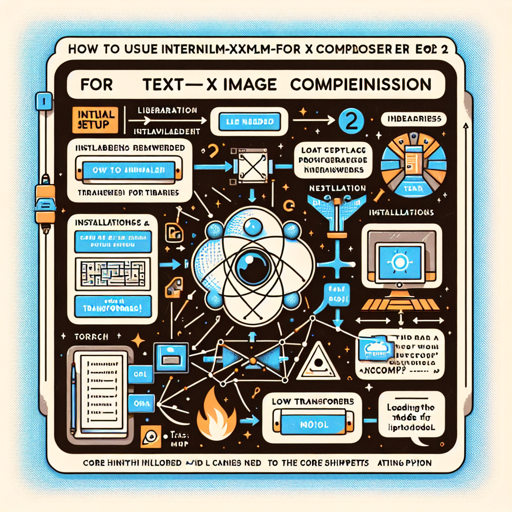
Welcome to our guide on utilizing the powerful InternLM-XComposer2 for advanced text-image comprehension! This large model combines the prowess of vision and language, allowing you to seamlessly generate text based on images. Below, we will walk you through the process step by step, ensuring even the most novice developer can follow along.
1. Initial Setup
To begin your adventure with InternLM-XComposer2, ensure you have the necessary libraries installed. If you haven’t done this yet, simply run:
pip install transformers torch pillow2. Loading the Model
To load the model using Transformers, you’ll follow this simple code structure:
import torch
from PIL import Image
from transformers import AutoTokenizer, AutoModelForCausalLM

ckpt_path = "internlm/internlm-xcomposer2-7b"
tokenizer = AutoTokenizer.from_pretrained(ckpt_path, trust_remote_code=True)
model = AutoModelForCausalLM.from_pretrained(ckpt_path, torch_dtype=torch.float32, trust_remote_code=True).cuda()  # load in float32
model = model.eval()
Here, we are initiating the model and loading it into the GPU for optimal performance. Think of loading a model like prepping for an orchestra – you need to ensure all the instruments (libraries and components) are in place before the music (processing) can begin!
3. Preparing Your Images
Next, gather the images you want the model to analyze. Simply specify their paths:
img_path_list = ['./panda.jpg', './bamboo.jpeg']
images = []
for img_path in img_path_list:
    image = Image.open(img_path).convert("RGB")
    image = model.vis_processor(image)
    images.append(image)
image = torch.stack(images)
In this section, we open the specified image files and process them. Picture this as a chef prepping ingredients before making a meal; without this step, our final product will lack flavor and substance.
4. Querying the Model
Now comes the exciting part! You’ll send a query to generate a text composition based on the loaded images:
query = ' please write an article based on the images. Title: my favorite animal.'

with torch.cuda.amp.autocast():
    response, history = model.chat(tokenizer, query=query, image=image, history=[], do_sample=False)

print(response)
This process is akin to sending a GPS signal to a car, instructing it on the desired direction to take. In this case, our ‘car’ (model) interprets the signal (query) and delivers a beautifully crafted response based on the images provided.
Troubleshooting Your Experience
- Out of Memory (OOM) Errors: If you encounter OOM errors, ensure you are loading the model with float16 precision by uncommenting the appropriate line of code. This change allows the model to consume less memory, like downsizing a jacket to fit better.
- Images Not Processing: Confirm that the paths to your images are correct. It’s like trying to find a restaurant without the proper address – you simply won’t get there!
- Model not responding: Ensure that your GPU is working properly and has sufficient resources allocated for model operation.
For more insights, updates, or to collaborate on AI development projects, stay connected with fxis.ai.
Conclusion
Congratulations! You’ve successfully learned how to leverage InternLM-XComposer2 for enhanced multimodal text-image generation. The blend of images and textual data opens a new realm of possibilities in AI, allowing deeper understanding and creativity across various domains.
At fxis.ai, we believe that such advancements are crucial for the future of AI, as they enable more comprehensive and effective solutions. Our team is continually exploring new methodologies to push the envelope in artificial intelligence, ensuring that our clients benefit from the latest technological innovations.