
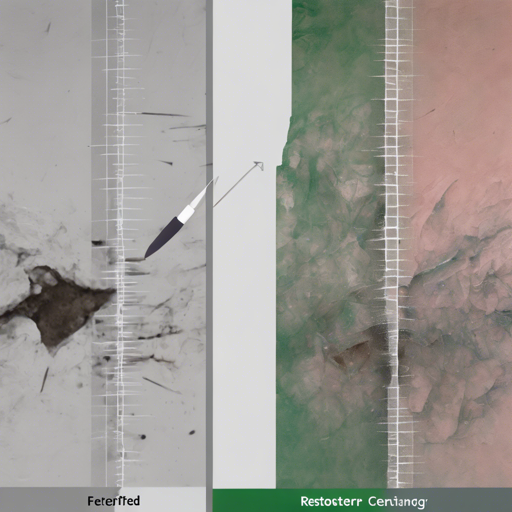
Ever found yourself staring at a photograph, wishing you could magically remove an unwanted object, like a random stranger photobombing your perfect shot? Fear not! With the power of .NET implementation of content-aware fill, popularly known as inpainting, you can achieve just that. This blog post will guide you through the process in a user-friendly manner, giving you the knack to revamp your images!
What is Inpainting?
Inpainting, also referred to as content-aware fill, is a technique used to intelligently fill unwanted or missing areas in photographs. Imagine you are an artist who needs to fill in a blank space on your canvas; instead of just slapping any color there, you inspect the surrounding areas and choose colors that blend seamlessly. Inpainting does the same with images, ensuring that the filled areas look as though the removed objects never existed. Below is an example highlighting the magic of inpainting:


Getting Started with Inpainting
Try it in Docker
To get the ball rolling, you can launch the inpainting application using Docker. Just run the following command in your terminal:
bash
docker run -p 5000:80 -it --rm zavolokasinpainter:latest
Once you have executed the command, direct your browser to http://localhost:5000 to access the application.
How to Use the Inpainting Code
Using the inpainting functionality in C# is simple. Below is a concise code snippet to help you get started:
csharp
var inpainter = new Inpainter();
var result = inpainter.Inpaint(imageArgb, markupArgb, donors);
result
    .FromArgbToBitmap()
    .SaveTo(resultPath, ImageFormat.Png)
    .ShowFile();
Now, let’s decode this code with an analogy:
Think of the Inpainter as a skilled painter. Your original image is the canvas, the markup is the sketch of what shouldn’t be there (your unwanted object), and donors represent the paint colors carefully selected from nearby areas on the canvas. When the artist sees those colors and blends them into the sketch, the unwanted object simply disappears, and the artwork comes alive.
Customization Settings
To make your inpainting experience even more efficient, you can fine-tune the algorithm using the following settings:
- MaxInpaintIterations: The more iterations you run, the finer the result. This is like deciding how many brush strokes you want to apply for that beautiful finish.
- PatchDistanceCalculator: This setting determines how the algorithm measures color differences. You have options like:
- Cie76: Fastest option
- Cie2000: Offers more accurate results
Troubleshooting Ideas
While the inpainting process is relatively straightforward, you may run into some hiccups. Here are a few troubleshooting tips:
- If the output image isn’t blending well, consider running more MaxInpaintIterations.
- If you suspect color mismatches, try switching the PatchDistanceCalculator algorithm for better accuracy.
- In case of any errors, ensure that your images are in the compatible format and don’t forget to check if the Docker container is running properly.
For more insights, updates, or to collaborate on AI development projects, stay connected with fxis.ai.
Final Thoughts
At fxis.ai, we believe that such advancements are crucial for the future of AI, as they enable more comprehensive and effective solutions. Our team is continually exploring new methodologies to push the envelope in artificial intelligence, ensuring that our clients benefit from the latest technological innovations.