
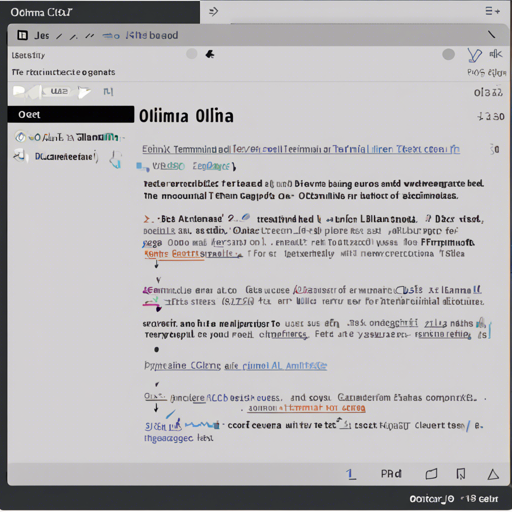
Welcome, dear reader! Are you ready to dive into the world of oterm, a text-based terminal client for Ollama? It’s an intuitive tool that can transform your chat experience with artificial intelligence, all from the comfort of your terminal. Let’s break down how you can get started, use its features, and troubleshoot any hiccups along the way!
Features of oterm
- Intuitive and simple terminal UI — no need to run servers or frontends, just type
otermin your terminal. - Multiple persistent chat sessions — stored along with custom prompt parameters in SQLite.
- Use any model you’ve pulled in Ollama, including your own custom models.
- Easy customization of model parameters and system prompts.
Installation Instructions
Installing oterm is a breeze! Follow the platform-specific instructions below:
For MacOS using Homebrew:
brew tap ggozad/formulas
brew install ggozad/formulas/oterm
For Arch Linux using yay:
yay -S otermUsing pip:
pip install otermHow to Use oterm
Before using oterm, ensure you have the Ollama server running. It looks for the Ollama API at http://127.0.0.1:11434 by default. If you are running Ollama in a different environment, you can customize the host and port using the OLLAMA_HOST environment variable.
Customizing the Connection
If you need to change the host, you can set the following environment variables:
OLLAMA_URL=http://host:port/api
OTERM_VERIFY_SSL=False  # Disable SSL verification if needed
Starting oterm
To start oterm, run:
otermExploring Commands and Keyboard Shortcuts
Once you have oterm running, there are numerous commands to help you navigate your chats easily:
- New Chat: Create a new chat session.
- Edit Chat Parameters: Change system prompt, parameters, or format.
- Rename Chat: Name your current chat session.
- Export Chat: Save the chat session as Markdown.
- Delete Chat: Remove the current chat session.
- Regenerate Last Message: Try to change the last message sent by Ollama.
Keyboard Shortcuts
Here are some handy keyboard shortcuts:
Ctrl + k: Open command palette.Ctrl + t: Toggle between dark/light themes.Ctrl + q: Quit oterm.Ctrl + l: Switch to multiline input mode.Esc: Cancel message inference.
Copying and Pasting
Copying and pasting can be tricky in terminal applications. You can achieve it as follows:
- Clicking a message copies it to the clipboard.
- Clicking a code block copies only that block.
- Use key modifiers (e.g.,
Optionfor iTerm) for dragging text selection.
Customizing Your Models
When creating a new chat, you can not only select the model but also customize the system instruction and parameters (like context length and temperature). Remember, once a chat has started, you cannot change the model!
Chat Session Storage
Your chat sessions are stored locally in a SQLite database. You can customize where this database is stored with the OTERM_DATA_DIR environment variable. To find the database location, run:
oterm --dbTroubleshooting Tips
If you encounter any issues while using oterm, here are some troubleshooting ideas:
- Make sure you have the Ollama server running, and check the correct endpoint.
- Check your internet connection if you’re having trouble accessing models.
- Verify that the environment variables are set correctly, especially for host and port.
For more insights, updates, or to collaborate on AI development projects, stay connected with fxis.ai.
Conclusion
Using oterm can elevate your AI chat experience in a terminal environment with its unique features and customization options. At fxis.ai, we believe that such advancements are crucial for the future of AI, as they enable more comprehensive and effective solutions. Our team is continually exploring new methodologies to push the envelope in artificial intelligence, ensuring that our clients benefit from the latest technological innovations.