
The ResNet50.a1_in1k model is a powerful tool for image classification tasks, trained on the ImageNet-1k dataset. This guide will walk you through using this model effectively, including insights on feature map extraction and image embeddings. Let’s dive in!
Model Overview
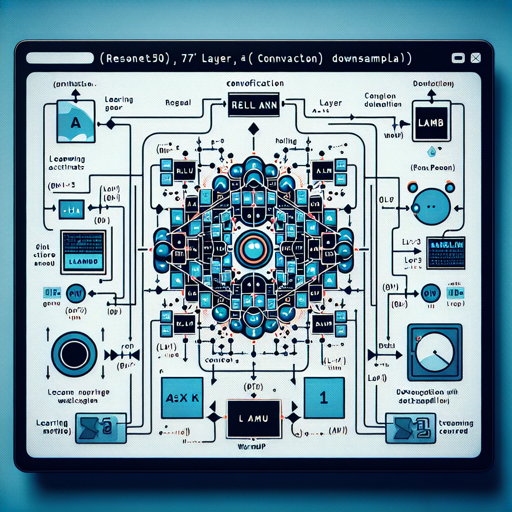
ResNet50.a1_in1k is an advanced image classification model that utilizes:
- ReLU activations
- A single layer 7×7 convolution with pooling
- 1×1 convolution shortcut for downsampling
It incorporates a solid training recipe using the LAMB optimizer and a cosine learning rate schedule with warmup.
Getting Started with Image Classification
To classify an image using this model, follow these steps:
python
from urllib.request import urlopen
from PIL import Image
import timm

# Load the image
img = Image.open(urlopen("https://huggingface.co/datasets/huggingface/documentation-images/resolve/main/beignet-task-guide.png"))

# Create the model
model = timm.create_model('resnet50.a1_in1k', pretrained=True)
model = model.eval()

# Get model specific transforms (normalization, resize)
data_config = timm.data.resolve_model_data_config(model)
transforms = timm.data.create_transform(**data_config, is_training=False)

# Classify the image
output = model(transforms(img).unsqueeze(0))  # Unsqueeze single image into batch of 1
top5_probabilities, top5_class_indices = torch.topk(output.softmax(dim=1) * 100, k=5)
Analogy: Understanding ResNet50.a1_in1k’s Functionality
Imagine you’re at a bustling restaurant, where every dish (image) is served on a plate (input). The head chef (model) has a specialized tasting technique (layers of convolution and activation functions) to determine the best flavors (features). Each layer captures different flavors, from the basic herbs to intricate sauces. When you finish a meal (input classification), the chef can decide if it belongs to the starter, main course, or dessert category (classification). In the end, the chef uses experience (training data) from every dish ever served to ensure top quality.
Feature Map Extraction
The ResNet50 model can also be used to extract feature maps from images. This is useful if you’re interested in understanding what features the model identifies. Here’s how:
python
from urllib.request import urlopen
from PIL import Image
import timm

# Load the image
img = Image.open(urlopen("https://huggingface.co/datasets/huggingface/documentation-images/resolve/main/beignet-task-guide.png"))

# Create the model with features_only=True
model = timm.create_model('resnet50.a1_in1k', pretrained=True, features_only=True)
model = model.eval()

# Get model specific transforms (normalization, resize)
data_config = timm.data.resolve_model_data_config(model)
transforms = timm.data.create_transform(**data_config, is_training=False)

# Extract feature maps
output = model(transforms(img).unsqueeze(0))  # Unsqueeze single image into batch of 1
for o in output:    # Access each feature map
    print(o.shape)  # Example output shapes
Image Embeddings
Additionally, you can obtain image embeddings using this model, which are useful for many applications including similarity searches. Here’s how to do that:
python
from urllib.request import urlopen
from PIL import Image
import timm

# Load the image
img = Image.open(urlopen("https://huggingface.co/datasets/huggingface/documentation-images/resolve/main/beignet-task-guide.png"))

# Create the model without the classifier
model = timm.create_model('resnet50.a1_in1k', pretrained=True, num_classes=0)  # Remove classifier
model = model.eval()

# Get model specific transforms (normalization, resize)
data_config = timm.data.resolve_model_data_config(model)
transforms = timm.data.create_transform(**data_config, is_training=False)

# Obtain embeddings
output = model(transforms(img).unsqueeze(0))  # Output is (batch_size, num_features)
# Alternatively
output = model.forward_features(transforms(img).unsqueeze(0))  # Unpooled output
output = model.forward_head(output, pre_logits=True)  # Get logits
Troubleshooting Common Issues
- Image Not Loading: Ensure the URL is correct and that the image is accessible.
- Model or Library Installation Issues: Check if you have all necessary libraries installed, particularly timm.
- Incorrect Output Shapes: Ensure the input image is preprocessed correctly according to the model requirements.
For more insights, updates, or to collaborate on AI development projects, stay connected with fxis.ai.
At fxis.ai, we believe that such advancements are crucial for the future of AI, as they enable more comprehensive and effective solutions. Our team is continually exploring new methodologies to push the envelope in artificial intelligence, ensuring that our clients benefit from the latest technological innovations.