
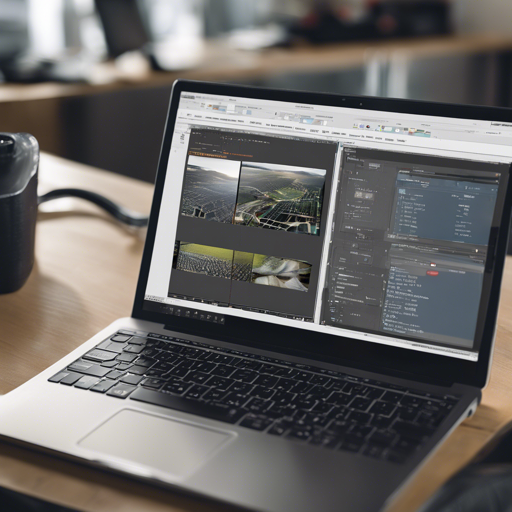
Welcome to the exciting world of high-resolution multi-band imagery! The **bv** tool is your go-to tool for visualizing large images on a remote machine, even when your connection is less than stellar. So, let’s dive in and explore how to get the most out of this handy little utility.
What is the **bv** Tool?
The **bv** tool allows you to quickly view high-resolution multi-band imagery directly in your iTerm 2. Designed for low-bandwidth connections, it efficiently subsamples and compresses images, then sends them encoded as a base64 PNG. Think of it as a magician who takes a massive picture and, with a wave of its wand, presents a compact version that fits right into your terminal window!
Getting Started with **bv**
Before you start, make sure you have the following installed:
- Python 3: The backbone of the script.
- GDAL 2: For handling raster data formats.
- Numpy and Matplotlib: To support the imaging process.
- iTerm 2: Your terminal window for displaying images.
Installation Steps
To install the **bv** tool, follow these simple steps:
# Install Python 3
brew install python3

# Install Numpy and Matplotlib
pip3 install numpy matplotlib

# Install GDAL 2
brew install gdal --HEAD --without-python
pip3 install gdal
Example Use Cases
Let’s discuss some practical scenarios where **bv** shines!
1. Displaying Big Images over Small Connections
With **bv**, you can display a mammoth 3.5 billion pixel image (around 3.3GB in size) using only 467KB over an SSH connection. Think of it as inflating a giant balloon but only needing a tiny bit of air to make it visible!

2. Different Band Combinations
Using the command:
bv -b 5 -b 4 -b 3 -w 600you can display a six-band image efficiently, specifying specific bands to visualize in RGB channels, just like choosing the right ingredients for the perfect recipe!

3. Subset Images
Your workflow can also include displaying subsets of larger images using the gdal_translate syntax:
-srcwin xoff yoff xsize ysizeFor example, visualize only a 1000×1000 area of an enormous image, like selecting a small slice of cake from the entire dessert!

Troubleshooting Tips
If you encounter any issues while using the **bv** tool, consider the following troubleshooting ideas:
- Ensure that all dependencies are correctly installed and up-to-date.
- Verify your image file paths are accurate and accessible.
- Check the bandwidth of your network; a slow connection could hinder performance.
- If images aren’t displaying, consider adjusting the compression settings using the -zlevel option.
For more insights, updates, or to collaborate on AI development projects, stay connected with fxis.ai.
Advanced Features
The **bv** tool offers several advanced capabilities:
- Stacking Images: Combine RGB bands from separate files.
- Compression Control: Adjust the compression level for different scenarios.
- Subsampling Algorithms: Experiment with different algorithms to find the best visual result.
- Standard Input Handling: Use commands like
ls -1 *.tif | bv -w 100to read filenames from stdin.
Conclusion
With the **bv** tool, you can open the door to powerful visualization techniques for multi-band images, all within a simple command line interface. Whether you’re displaying massive images or experimenting with different visual settings, the potential is vast!
At fxis.ai, we believe that such advancements are crucial for the future of AI, as they enable more comprehensive and effective solutions. Our team is continually exploring new methodologies to push the envelope in artificial intelligence, ensuring that our clients benefit from the latest technological innovations.