
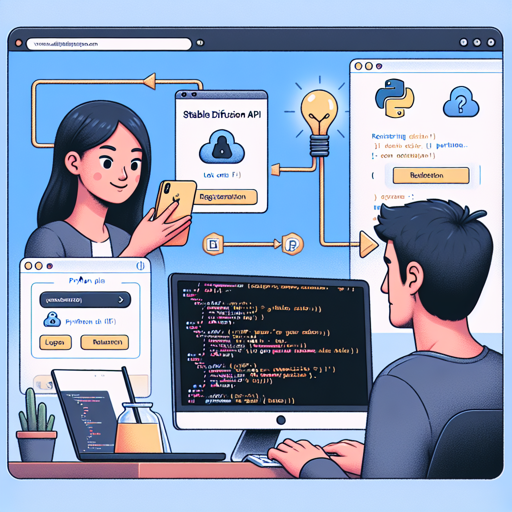
Welcome to the world of ultra-realistic image generation! In this guide, we’ll be exploring how to leverage the DarkSushiMix-Mix API, a powerful resource that allows you to create stunning images effortlessly. Let’s walk through the steps to get started.
Step 1: Acquire Your API Key
The first step in accessing the DarkSushiMix-Mix model is to get your API key. Follow these simple steps:
- Visit the Stable Diffusion API website.
- Register for an account (no payment required).
- Obtain your unique API key from your account dashboard.
Step 2: Set Up Your Coding Environment
Once you have your API key, it’s time to integrate it into your code. You can use programming languages such as PHP, Node.js, or Java. However, for this demonstration, we will use Python.
Step 3: Using the API
Now, let’s dive into the code that allows you to interact with the API. Imagine you’re a chef creating a fantastic dish. Here’s how the code works:
- The API key is akin to your secret recipe; it gives you access to the ingredients (image generation capabilities).
- The model ID primarily decides what dish you’re making—in this case, the DarkSushiMix-Mix model.
- The prompt serves as your list of ingredients, telling the API precisely what to create.
- Negative prompts help to avoid unwanted flavors—or in this case, unwanted features in your generated image.
Here’s how the code plays out:
import requests
import json

url = "https://stablediffusionapi.com/api/v4/dreambooth"
payload = json.dumps({
    "key": "your_api_key",
    "model_id": "darksushimix-mix",
    "prompt": "ultra realistic close up portrait ((beautiful pale cyberpunk female with heavy black eyeliner)), blue eyes...",
    "negative_prompt": "painting, extra fingers, mutated hands...",
    "width": 512,
    "height": 512,
    "samples": 1,
    "num_inference_steps": 30,
    "safety_checker": "no",
    "enhance_prompt": "yes",
    "seed": None,
    "guidance_scale": 7.5,
})
headers = {
    "Content-Type": "application/json"
}

response = requests.request("POST", url, headers=headers, data=payload)
print(response.text)
Step 4: Run Your Code
Once your Python code is ready, running it will generate an ultra-realistic image based on the specified prompt. It’s like baking a cake—the better the ingredients and instructions, the more beautiful the cake!
Troubleshooting
If you encounter any issues while using the DarkSushiMix-Mix API, consider these troubleshooting tips:
- Double-check your API key—if it’s wrong, you won’t get the right results.
- Ensure that your model ID is accurately specified; a typo can lead to no response.
- Review your JSON payload to guarantee that it’s correctly formatted.
- If you’re not seeing expected outputs, verify your prompt details for clarity.
- Should you still face difficulties, feel free to reach out for assistance.
For more insights, updates, or to collaborate on AI development projects, stay connected with fxis.ai.
Bonus: Special Discount
As a token of appreciation for your interest, you can use the coupon code **DMGG0RBN** for a 25% discount on future purchases!
Conclusion
Image generation has never been easier and more exciting with the DarkSushiMix-Mix API. By following the steps outlined above, you can unleash your creativity and produce breathtaking images with just a few lines of code.
At fxis.ai, we believe that such advancements are crucial for the future of AI, as they enable more comprehensive and effective solutions. Our team is continually exploring new methodologies to push the envelope in artificial intelligence, ensuring that our clients benefit from the latest technological innovations.