
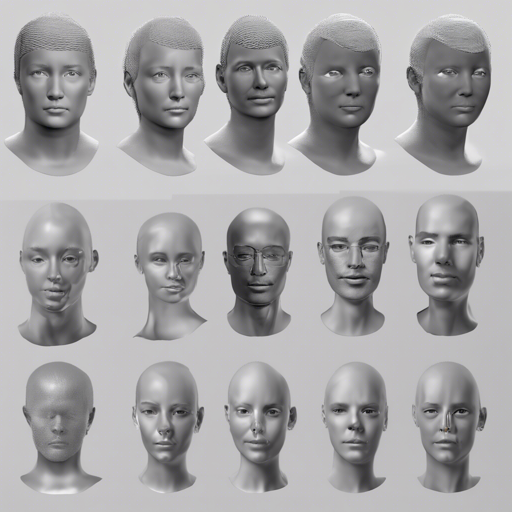
The REALY benchmark is an innovative repository designed to evaluate 3D face reconstruction methods through a region-aware evaluation pipeline. This guide will walk you through the setup, evaluation, and troubleshooting of this benchmark, ensuring you can effectively measure the fine-grained normalized mean square error (NMSE) of your 3D face reconstruction techniques.
Understanding the Evaluation Metric
The core of the REALY benchmark lies in its evaluation metric, which compares the reconstructed mesh from 2D images against ground-truth scans. It specifically focuses on four facial regions: nose, mouth, forehead, and cheek. To better visualize this, think of the process as assembling a jigsaw puzzle where each piece represents a region of the face—if the pieces fit correctly, the overall picture (the reconstructed 3D face) is accurate!
System Requirements
- Compatible with Windows, macOS, and Ubuntu environments.
- No GPU is required for operation.
Installation Steps
The installation process is straightforward. Follow these steps:
- Clone the repository by running the following command:
- Navigate to the REALY directory:
- Create and activate the conda environment:
- NOTE: For Windows users, install scikit-sparse per the guideline here.
git clone https://github.com/czh-98/REALYcd REALYconda env create -f environment.yaml
conda activate REALYEvaluation Process
To properly evaluate using the REALY benchmark, you need to prepare your data meticulously. Here’s how to do it:
1. Data Preparation
- Merge the benchmark with the Headspace dataset by signing the Agreement. This will grant you access to the benchmark data.
- Download and unzip the benchmark file, placing the RELAY_HIFI3D_keypoints and REALY_scan_region folders into the RELAYdata directory.
- Use images from the RELAY_image folder to reconstruct 3D meshes, ensuring to save them in the *.obj format and naming them correspondingly with the input images.
2. Keypoints Preparation
- For better accuracy, extend the 68 facial keypoints to 85, particularly in the cheek region. Prepare the necessary barycentric keypoints file.
- Should you need a pre-defined barycentric file, contact Zenghao Chai, providing your template mesh.
3. Running the Evaluation
Execute the evaluation script by using the following command:
python main.py --REALY_HIFI3D_keypoints .data/REALY_HIFI3D_keypoints --REALY_scan_region .data/REALY_scan_region --prediction PREDICTION_PATH --template_topology TEMPLATE_NAME --scale_path .data/metrical_scale.txt --save SAVE_PATHThe results will be saved in your specified SAVE_PATH, containing detailed evaluations of the NMSE and other metrics.
Troubleshooting
If you run into any issues during installation or evaluation, try the following:
- Ensure all commands were executed in the correct order without typos.
- Double-check file paths to ensure they match your folders.
- If you experience issues with the scikit-sparse installation on Windows, refer back to the set-up guide here.
For more insights, updates, or to collaborate on AI development projects, stay connected with fxis.ai.
Final Thoughts
At fxis.ai, we believe that such advancements are crucial for the future of AI, as they enable more comprehensive and effective solutions. Our team is continually exploring new methodologies to push the envelope in artificial intelligence, ensuring that our clients benefit from the latest technological innovations.