
In this article, we will dive into the world of Optical Character Recognition (OCR) using the TrOCR model, a powerful encoder-decoder model fine-tuned to recognize handwritten texts. Let’s break down its functionality in a user-friendly manner and guide you through the process of utilizing this remarkable tool.
Understanding TrOCR: An Analogy
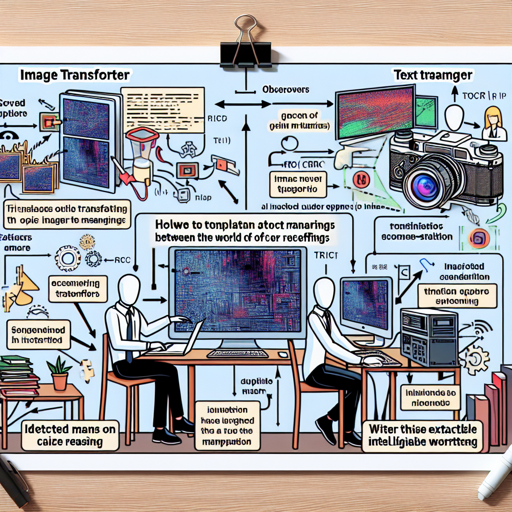
Think of the TrOCR model as a translator between two worlds: the world of images and the world of text. Imagine a skilled translator at an international conference who listens to speakers (the images) and writes down their words (the text) in a clear language. In this analogy:
- The image Transformer is the listener: it carefully observes the visuals and abstracts their meanings.
- The text Transformer is the writer: it converts the extracted meanings into coherent text.
The model tackles images in fixed-size patches (like sections of a picture) and uses position markers (like page numbers) to maintain order and context when generating the textual output.
What You Need to Get Started
To begin, ensure you have PyTorch and the necessary libraries installed. You will also need an image of handwritten text to process. In this example, we’ll utilize an image from the IAM database.
How to Use TrOCR in PyTorch
Follow these steps to utilize the TrOCR model.
- Import the required libraries and load the image.
- Initialize the processor and model from pre-trained weights.
- Process the image and generate the text.
from transformers import TrOCRProcessor, VisionEncoderDecoderModel
from PIL import Image
import requests

# load image from the IAM database
url = 'https://fki.tic.heia-fr.ch/static/img/a01-122-02-00.jpg'
image = Image.open(requests.get(url, stream=True).raw).convert("RGB")

processor = TrOCRProcessor.from_pretrained('microsoft/trocr-large-handwritten')
model = VisionEncoderDecoderModel.from_pretrained('microsoft/trocr-large-handwritten')

pixel_values = processor(images=image, return_tensors="pt").pixel_values
generated_ids = model.generate(pixel_values)
generated_text = processor.batch_decode(generated_ids, skip_special_tokens=True)[0]
Step-by-Step Explanation
Each piece of code above works in harmony to facilitate OCR:
- Import Libraries: This step loads essential libraries for handling images and the TrOCR model.
- Load Image: It pulls an image from a URL and converts it to RGB format for processing.
- Initialize Processor and Model: You set up the processor and the model using pre-trained weights, ensuring that the system is ready for recognition.
- Process Image: The image is fed into the model where it transforms the visuals into pixel values.
- Generate Text: Finally, the model generates text from the processed pixel values, which is then decoded to present the readable output.
Troubleshooting Common Issues
If you encounter issues while using the TrOCR model, here are a few troubleshooting tips:
- Image Not Loading: Ensure that the image URL is correct and the internet connection is stable.
- No Text Output: Inspect the image for clarity. Handwritten texts need to be distinct for effective recognition.
- Library Errors: Make sure that all required libraries are installed and up-to-date.
For more insights, updates, or to collaborate on AI development projects, stay connected with fxis.ai.
Conclusion
The TrOCR model serves as an excellent tool for converting handwritten images into text efficiently. By following the steps outlined above, you can harness the power of AI in recognizing and transforming handwritten notes into digital text.
At fxis.ai, we believe that such advancements are crucial for the future of AI, as they enable more comprehensive and effective solutions. Our team is continually exploring new methodologies to push the envelope in artificial intelligence, ensuring that our clients benefit from the latest technological innovations.