
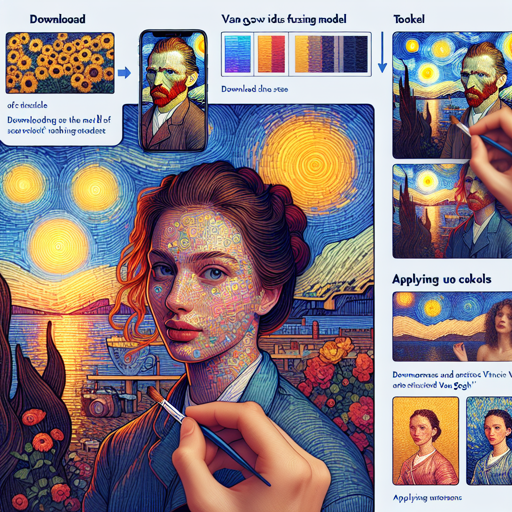
The Van Gogh Diffusion v2 model is a fine-tuned Stable Diffusion model that brings the enchanting artwork of **_Loving Vincent_** to life through AI. Here’s a step-by-step guide on how to harness this model effectively, along with troubleshooting tips.
Getting Started
To begin utilizing the Van Gogh Diffusion model, follow these simple steps:
- Download the Model: Start by downloading the ckpt file from the “Files and Versions” tab. Make sure to place it in the stable diffusion models folder of your chosen web UI.
- Token Usage: Always start your prompts with the token lvngvncnt to apply the Van Gogh style. For example, use lvngvncnt, beautiful woman at sunset.
- Best Practices: This model works best with the Euler sampler (avoid using Euler_a).
Generating Images
To create stunning images, you need to set specific parameters. Here’s an analogy to help understand how the inputs work:
Imagine you are a chef in a restaurant (the model) trying to create a unique dish (the image). The ingredients (your prompts and configuration settings) are crucial for the final taste. If you add the right spices (prompts) and keep cooking (processing steps) just enough, you’ll have a masterpiece!
To render a character or landscape, here’s an example prompt and settings:
prompt = "lvngvncnt, [person], highly detailed"
steps = 25
sampler = "Euler"
cfg_scale = 6
For landscapes, the structure is similar:
prompt = "lvngvncnt, [subjectsetting], highly detailed"
steps = 25
sampler = "Euler"
cfg_scale = 6
Using the Model in Python
If you’re comfortable with Python, integrating the model is straightforward. Below is a sample code to get you started:
from diffusers import StableDiffusionPipeline
import torch

model_id = "dallinmackay/Van-Gogh-diffusion"
pipe = StableDiffusionPipeline.from_pretrained(model_id, torch_dtype=torch.float16)
pipe = pipe.to("cuda")

prompt = "lvngvncnt, beautiful woman at sunset"
image = pipe(prompt).images[0]
image.save("sunset.png")
Troubleshooting Tips
If you encounter challenges such as yellow faces or an unwanted strong blue bias, here are some tips:
- Add terms like “yellow face” or “blue” in the negative prompt to mitigate these effects.
- If images do not render, check if your pytorch version and CUDA are compatible.
- Ensure the model is correctly placed in the models folder and that all dependencies are installed.
- If you require further assistance, remember that support and collaboration are just a click away. For more insights, updates, or to collaborate on AI development projects, stay connected with fxis.ai.
Licensing Information
This model is open access under a CreativeML OpenRAIL-M license. The license specifies:
- Outputs must not be harmful or illegal.
- The authors claim no rights over your generated outputs.
- You may commercialize the model, but must share the license terms with your users.
Read the full license here.
At fxis.ai, we believe that such advancements are crucial for the future of AI, as they enable more comprehensive and effective solutions. Our team is continually exploring new methodologies to push the envelope in artificial intelligence, ensuring that our clients benefit from the latest technological innovations.