
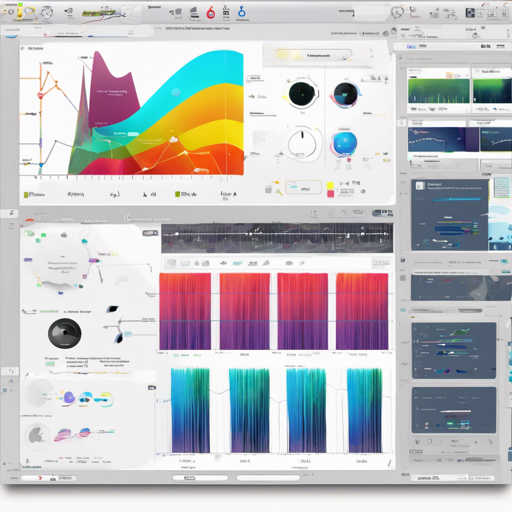
In the realm of audio processing, having a robust tool to visualize and annotate audio files can significantly enhance your workflow. Enter EchoMLPlay, an efficient application designed to help you manage your audio files seamlessly. In this blog post, we’ll walk you through the setup and usage of EchoMLPlay while highlighting potential troubleshooting tips along the way.
Getting Started with EchoMLPlay
To kick off your journey with EchoMLPlay, you’ll first need to ensure that you have all the required variables set up correctly. This is akin to packing your essentials before embarking on a trip!
Supported Storage Providers
- Azure Blob Storage
Setting Up Environment Variables
Just like ensuring your travel documents are in order, the following environment variables are crucial. They can be included in either your environment or one of the configuration JSON files.
Required Environment Variables
- HOSTNAME – The hostname for the HTTP server to listen on.
- PORT – The port for the server, which should be set to 4000 in development mode.
- AUTH_KEY – A random string for hashing user sessions.
- MONGO_HOST – Host of your MongoDB database.
- MONGO_USERNAME – Username for MongoDB.
- MONGO_PASSWORD – Password for MongoDB.
- STORAGE_ACCOUNT – Name of your Azure storage account.
- STORAGE_ACCESS_KEY – Access key for your Azure storage.
Optional Configurations
- cors – If set to true, enables cross-origin resource sharing.
- log – Settings for the logger.
Running EchoMLPlay
To get started with EchoMLPlay, you have several options depending on your environment. It’s like choosing the best mode of transportation for your journey.
Development Environment
To begin both back and front ends simultaneously:
bash yarn run devTo run them individually:
bash yarn run serverbash yarn run startOnce you’re running, connect your browser to http://localhost:3000.
Production Build
To build the production version, simply execute:
bash yarn run buildThen start the server:
bash yarn run prodVisit http://localhost once the server is running.
Running with Docker
Docker offers a portable way to run your application. To build and run your Docker image:
bash docker build -t echoml .bash docker run -p 80:80 -it --rm -e PORT=80 -e MONGO_HOST=your mongo host -e MONGO_USERNAME=your mongo username -e MONGO_PASSWORD=your mongo password -e STORAGE_ACCOUNT=your azure storage name -e STORAGE_ACCESS_KEY=your azure storage access key ritazhechoml:latestTroubleshooting
If you encounter issues while setting up EchoMLPlay, consider these troubleshooting tips:
- Double-check your environment variable configurations. They need to be correct for the application to function.
- Ensure your MongoDB service is running and accessible.
- If you’re using Docker, verify the image build process for any errors.
For more insights, updates, or to collaborate on AI development projects, stay connected with fxis.ai.
Conclusion
At fxis.ai, we believe that such advancements are crucial for the future of AI, as they enable more comprehensive and effective solutions. Our team is continually exploring new methodologies to push the envelope in artificial intelligence, ensuring that our clients benefit from the latest technological innovations.
With EchoMLPlay, you have a powerful tool at your fingertips to visualize and annotate audio files like never before. Happy exploring!