
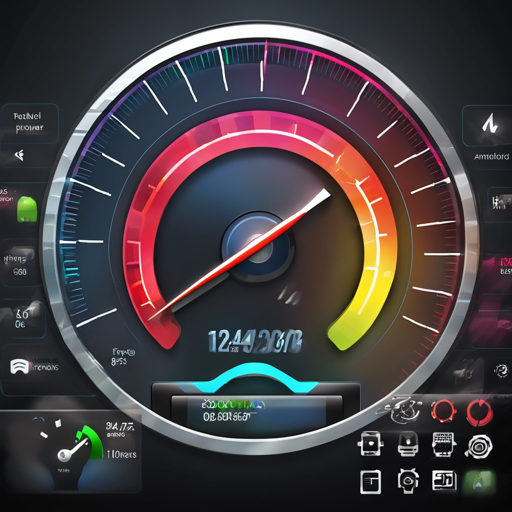
Welcome to the exciting world of dynamic speedometers and gauges with the SpeedView Library for Android! This amazing library not only lets you visualize your speed in various shapes but also allows for complete customization. Whether you’re building games that require accurate speed tracking or simply want an aesthetically pleasing speedometer, SpeedView has got you covered!
Getting Started with SpeedView
To harness the power of SpeedView in your Android applications, follow these simple steps:
Step 1: Setup
Make sure you have Kotlin added to your project. In your project-level build.gradle file, add:
buildscript {
    ext.kotlin_version = '1.5.31'
    dependencies {
        classpath "org.jetbrains.kotlin:kotlin-gradle-plugin:$kotlin_version"
    }
}
allprojects {
    repositories {
        mavenCentral()
    }
}
Then, in your app module’s build.gradle file, include the SpeedView library:
apply plugin: 'kotlin-android'
dependencies {
    implementation "com.github.anastr:speedviewlib:1.6.1"
}
Step 2: Choosing Your Speedometer
Select a speedometer or gauge to add to your layout. Here’s how you can implement the SpeedView:
<com.github.anastr.speedviewlib.SpeedView
    android:id="@+id/speedView"
    android:layout_width="wrap_content"
    android:layout_height="wrap_content"/>
Step 3: Making It Interactive
Now, it’s time to control the speed! Implement the following in your Kotlin activity:
val speedometer: SpeedView = findViewById(R.id.speedView)
speedometer.speedTo(50) // Move to 50 Km/s
speedometer.speedTo(50, 4000) // Move to 50 Km/s in 4 seconds
By default, the speed changes over 2000 milliseconds. You can customize this duration if needed!
Understanding SpeedView through Analogy
Imagine you are painting a beautiful landscape. The canvas represents your Android app, while the brushes symbolize the various tools available to you, like SpeedView. Each brush can create different strokes and styles, much like you can customize parameters such as color, shape, and width in your app! Just as an artist chooses their colors to convey different emotions, SpeedView allows you to modify the design and functionality, bringing your app to life!
Troubleshooting Tips
If you encounter challenges while implementing SpeedView, consider the following:
- Ensure that the Kotlin version in your project is at least 1.5.20.
- Check your
build.gradlefiles for any typos or syntax errors. - Make sure you’re connected to the internet while fetching dependencies.
For more insights, updates, or to collaborate on AI development projects, stay connected with fxis.ai.
Advanced Usage and Features
SpeedView offers further customization options like integrating with indicators and notes to enhance user experience. Explore more advanced features in the SpeedView Wiki.
Wrap Up
With SpeedView, the possibilities to create stunning visualizations are limitless! Dive into your next project with this powerful library, and let your creativity flow.
At fxis.ai, we believe that such advancements are crucial for the future of AI, as they enable more comprehensive and effective solutions. Our team is continually exploring new methodologies to push the envelope in artificial intelligence, ensuring that our clients benefit from the latest technological innovations.